GIF creation · 5 min read
How to make a GIF from a YouTube video
Quick answer
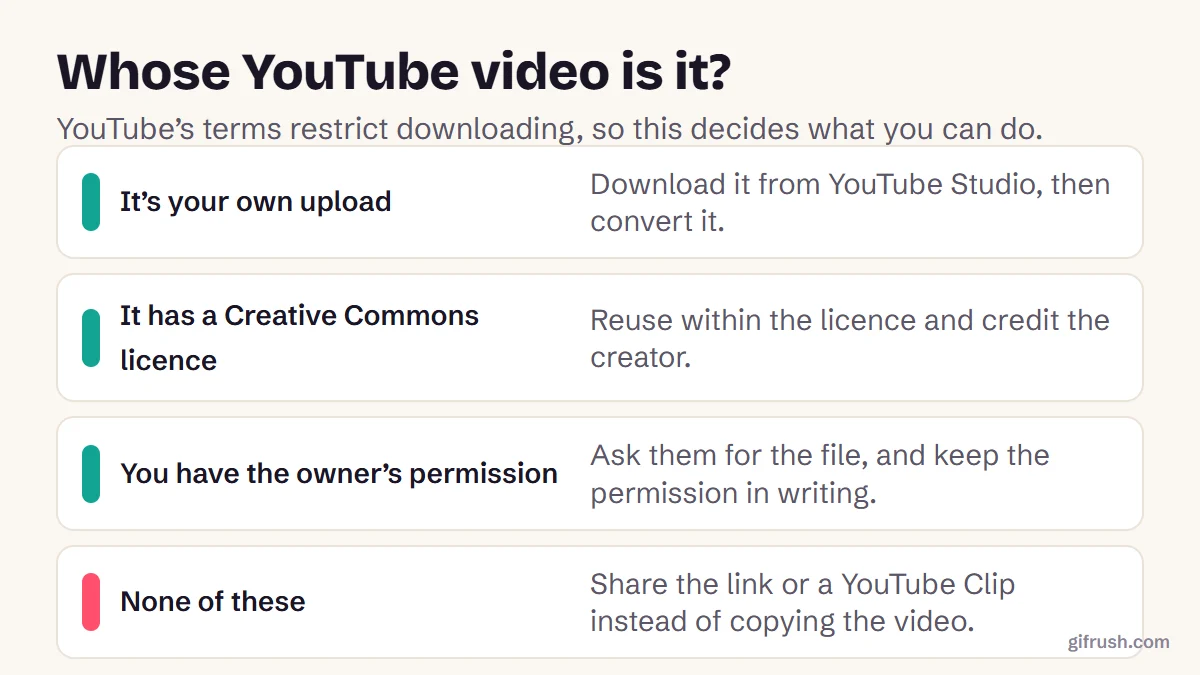
To make a GIF from a YouTube video you own, download it from YouTube Studio, then trim a few seconds in a video-to-GIF tool. For someone else’s video, get their permission or use a Creative Commons licensed one, because YouTube’s terms restrict downloading. Otherwise, share the link or a YouTube Clip.
Key takeaways
- Start with rights. YouTube’s terms restrict downloading unless YouTube or the rights holder allows it.
- Your own uploads are easy: YouTube Studio lets you download them as MP4.
- Creative Commons videos can be reused within the licence, with credit.
- A 2–6 second clip at 10–15 fps is the right shape for a GIF.
Can you make a GIF from any YouTube video?
Not automatically. Technically it’s simple, but legally it depends on the video. YouTube’s Terms of Service say you may not download, copy or modify content on the service unless YouTube expressly authorises it, or YouTube and the rights holders have given you written permission. A video being public doesn’t change this.
That’s why we don’t recommend YouTube downloader sites, and why GifRush’s tools work only from files you provide. Here are the routes that keep you on safe ground.
How to make a GIF from your own YouTube video
If you uploaded the video, YouTube provides the file. This is a great way to make shareable previews of your own content.
Download from YouTube Studio
Sign in to YouTube Studio, click Content, open the menu beside your video and choose Download. You’ll get an MP4 at 720p or 360p.
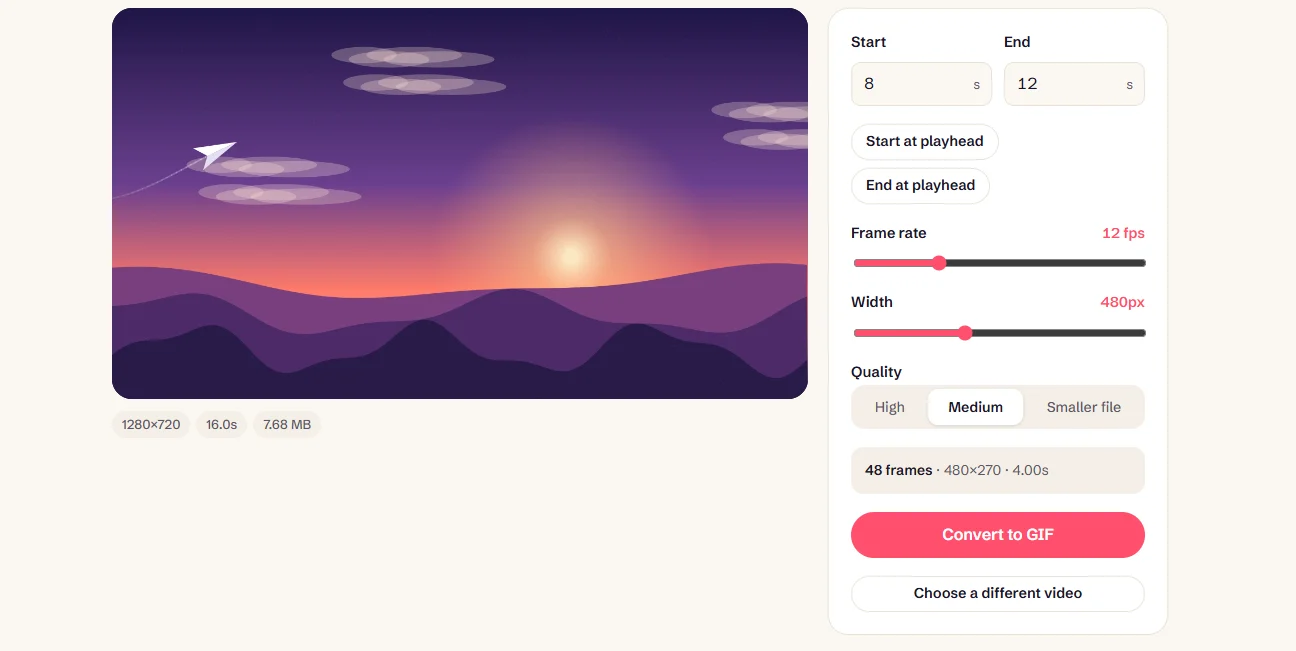
Add it to Video to GIF
Drop the MP4 into Video to GIF. It stays on your device, and nothing is uploaded.
Find the moment
Play the video and press “Start at playhead” and “End at playhead”, or type exact times. Aim for 2–6 seconds.
Set frame rate and width
Use 10–15 fps and 320–480 px. The Medium quality setting is a good balance for video footage.
Convert and caption
Press Convert to GIF. Since the sound is gone, consider adding a caption with the key line.
Studio has some limits: it only offers your own uploads, a video can be downloaded up to five times in 24 hours, and videos with certain strikes or preapproved audio aren’t available. If you have the original camera file, use that, because it’s higher quality. Also, you may not own everything in your video, such as a licensed song or a clip from another film.
How to make a GIF from someone else’s video
| Situation | What to do |
|---|---|
| It’s Creative Commons | Use YouTube’s Creative Commons filter. Check the licence and credit the title, author, source and licence. |
| You know the creator | Ask them. Many are happy to share clips or send you the file, especially if you credit them. Keep their reply. |
| You just want to share a moment | Use YouTube’s share button, with a start time or a Clip. No copying is needed, and the creator keeps the view. |
| It’s already on GIPHY | Search GIPHY, where many studios and creators publish official GIFs for sharing. |
Tools such as GIPHY’s maker have also offered to create GIFs from a pasted video link. That’s convenient, but it doesn’t give you rights to the footage. The same is true of recording your screen: our GIF Recorder is built for your own screen, demos and webcam, so use it only on content you’re allowed to capture.
What are the best settings for a YouTube GIF?
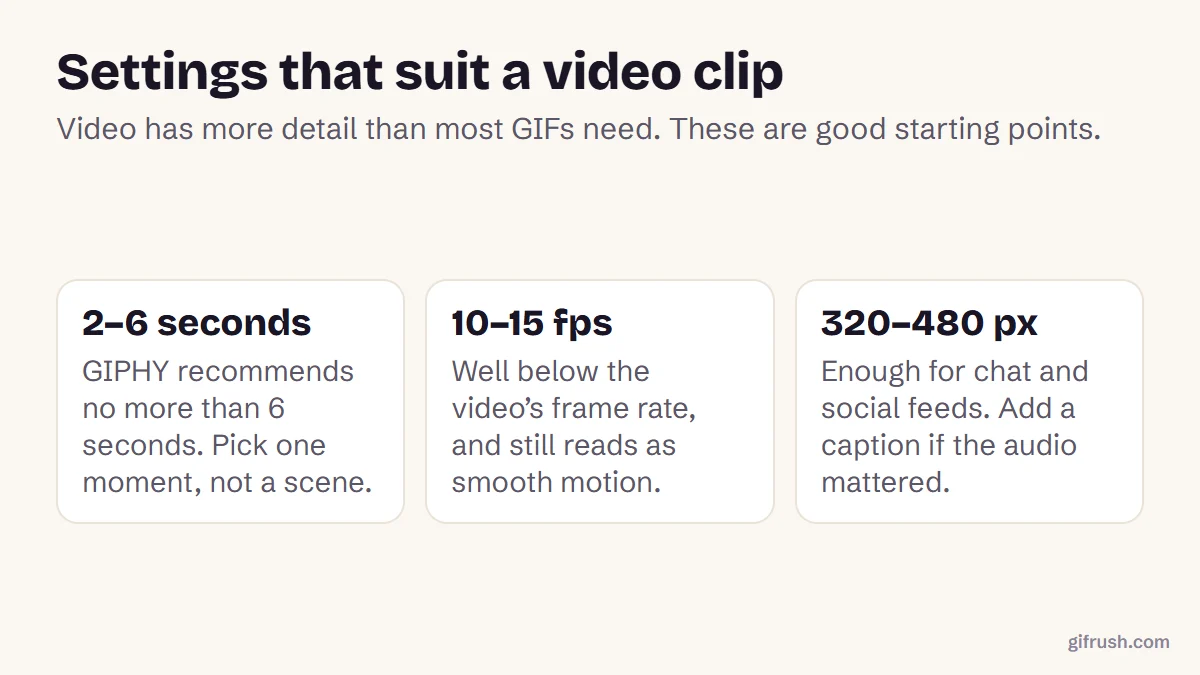
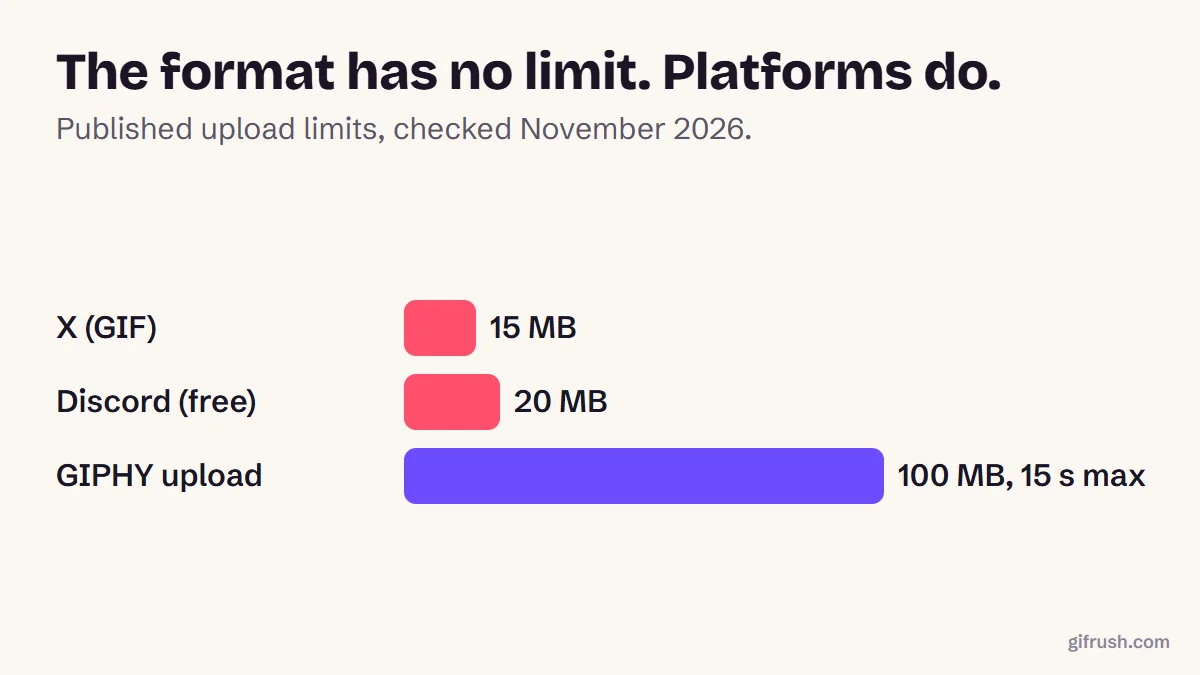
A typical video has far more detail than a GIF needs. GIPHY recommends 6 seconds or less and 8 MB or less, and our tests show that each extra second adds a similar amount of weight. Our guide to making a GIF from a video has the full size table, and how long a GIF can be lists platform limits.
- Choose a moment that needs no sound. Reactions and visual gags work better than dialogue.
- Avoid cuts. A camera change inside a short GIF is disorienting, and it’s harder to loop.
- Try a [boomerang](/reverse-gif) if the clip doesn’t loop smoothly.
- Credit your source when you post, even if the licence doesn’t require it.
Have a clip you’re allowed to use? Turn it into a GIF without uploading it anywhere.Open Video to GIF
New to this topic? Start with our main guide: How to make a GIF from scratch
Frequently asked questions
How do I make a GIF from a YouTube video?
If it’s your own video, download it from YouTube Studio and convert a few seconds with a video-to-GIF tool. For other videos, get permission or use a Creative Commons licensed one.
Is it legal to make a GIF from a YouTube video?
It depends on the video, your country and how you use it. YouTube’s terms restrict downloading without authorisation, and the footage may be protected by copyright. Using your own or properly licensed content avoids the problem.
Can I download my own YouTube videos?
Yes. In YouTube Studio, open Content, then use the menu beside the video and choose Download. You’ll get an MP4 in 720p or 360p, and you can do this up to five times per video in 24 hours.
How long should a YouTube GIF be?
Two to six seconds works best. GIPHY recommends 6 seconds or less, and a shorter GIF keeps the file small and focuses on a single moment.
Does YouTube have a GIF maker?
Not in the sense of exporting a .gif file for general use. YouTube lets you share a video from a set time or create a Clip, which keeps the content on YouTube.
Sources
- Terms of Service (YouTube)
- Download your own YouTube videos (YouTube Help)
- Creative Commons on YouTube (YouTube Help)
- GIF Creation Best Practices (GIPHY Support)
Free tools for this
Video to GIF
Turn MP4, WebM or MOV clips into smooth looping GIFs. Trim, resize and set the frame rate.
Add Text to GIF
Put meme-style captions on an animated GIF — top and bottom text, colours and outline.
GIF Recorder
Free GIF screen recorder: record your screen, a window, a tab or your webcam straight to an animated GIF.
Reverse GIF
Play a GIF backwards, or make a seamless boomerang that loops forward and back.