GIF creation · 5 min read
How to convert an MP4 to a GIF
Quick answer
To convert an MP4 to a GIF, add the file to an MP4-to-GIF converter, select up to 30 seconds, choose a frame rate and width, then convert and download. GIF can’t keep every colour or the audio, but a High quality setting with per-frame palettes keeps the result looking close to the original.
Key takeaways
- GIF can’t be truly lossless from MP4: it drops audio and reduces each frame to 256 colours.
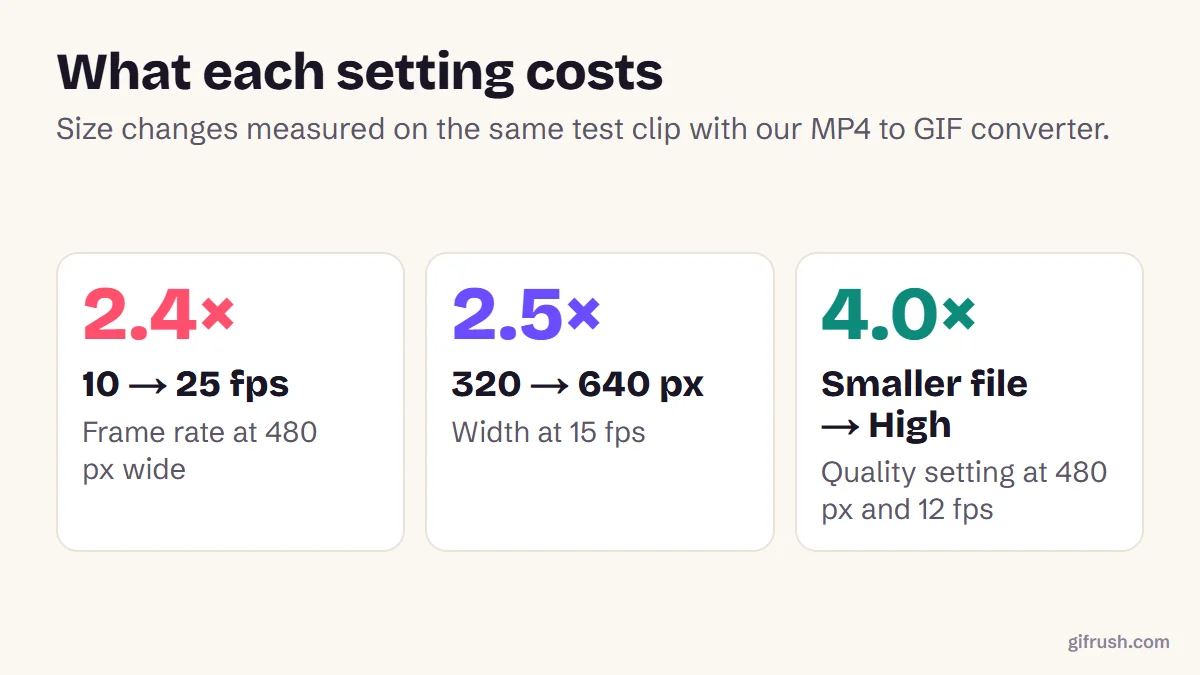
- Frame rate and width set your file size. Each can multiply it by about 2.5×.
- Quality makes a big difference to size: High was 4× larger than Smaller file in our test.
- If your destination accepts video, staying with MP4 keeps the most quality.
How do you convert an MP4 to a GIF?
Add your MP4
Open MP4 to GIF and drop in an MP4 or M4V file. The video is decoded by your browser, and it’s never uploaded.
Select the part you want
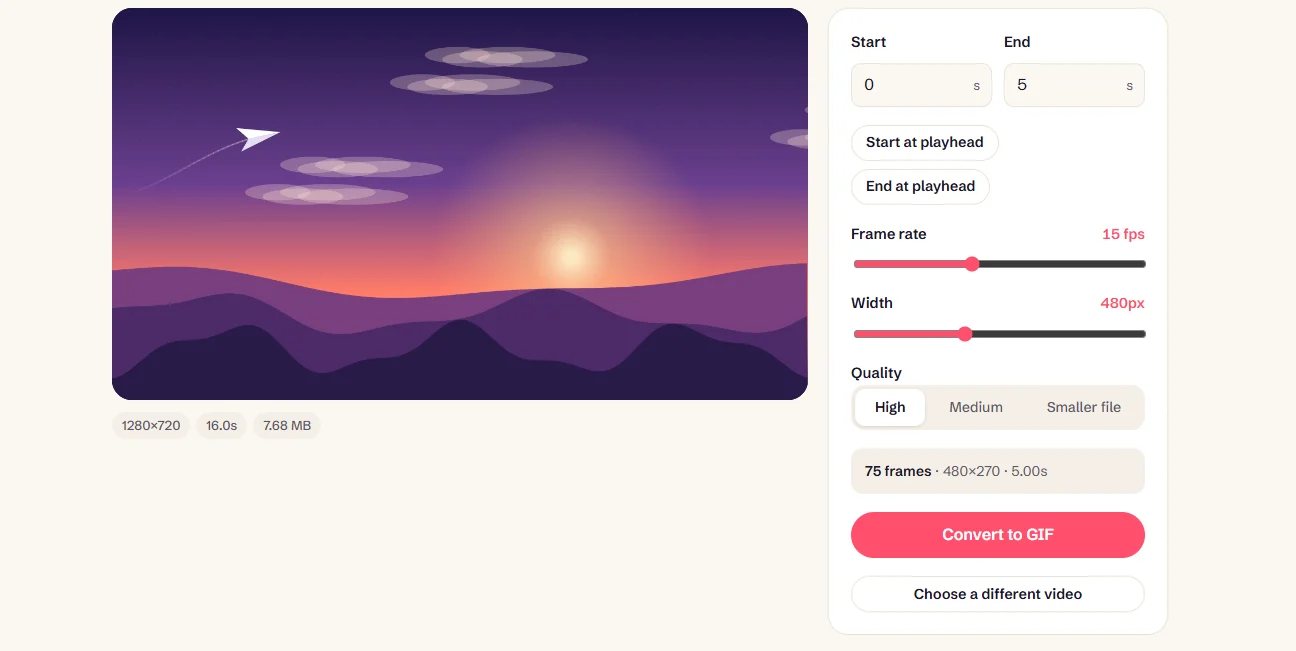
Enter Start and End times, or use “Start at playhead” and “End at playhead” while you play it. You can select up to 30 seconds.
Set frame rate and width
Try 15 fps and 480 px, which keeps motion smooth at a sensible size. The tool shows the frame count and output dimensions.
Choose a quality level
Use High for the closest match to your video. Step down to Medium or Smaller file if you’re aiming for a small file.
Convert and download
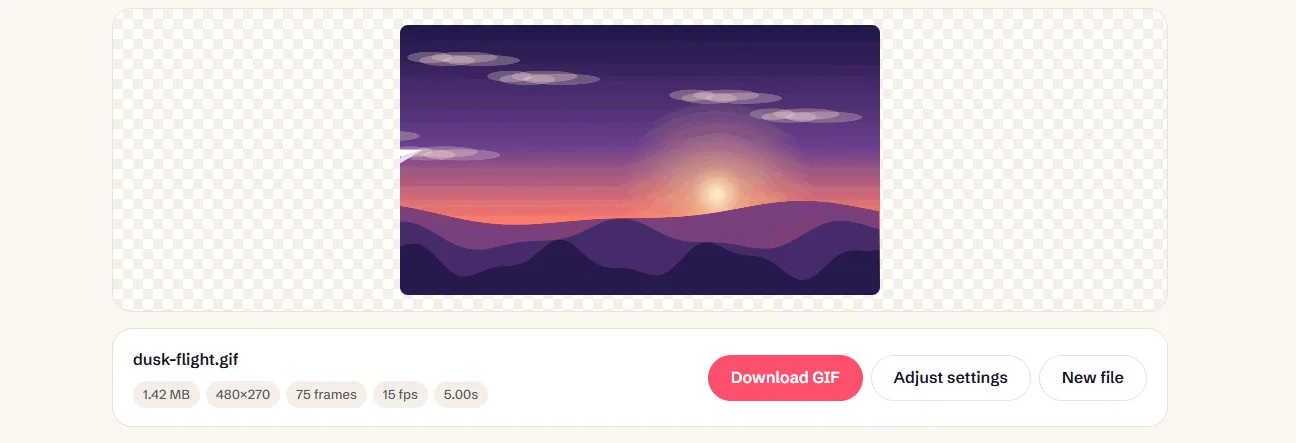
Press Convert to GIF. Check the preview and size, and use “Adjust settings” to try again without reloading the video.
Can you convert MP4 to GIF without losing quality?
Not entirely, and any tool that promises otherwise is overselling. An MP4 can show millions of colours and carry audio. A GIF is limited to 256 colours per frame and has no sound. What you can do is keep the loss hard to see:
- Start with the best source. A re-compressed copy brings its blockiness with it.
- Use per-frame palettes. GifRush builds a separate palette for each frame, so colours can follow the scene.
- Keep the width modest. Sharp detail at a smaller size looks better than a large, blurry GIF.
- Choose clips that suit GIF. Clean graphics and steady shots survive better than grainy, shifting gradients.
How resolution, frame rate and compression affect the result
We measured each one on the same clip, changing one setting at a time:
| Width | 10 fps | 15 fps | 25 fps |
|---|---|---|---|
| 320 px | 574 KB | 859 KB | 1.34 MB |
| 480 px | 978 KB | 1.40 MB | 2.29 MB |
| 640 px | 1.40 MB | 2.08 MB | 3.33 MB |
| Quality | Size | How it saves space |
|---|---|---|
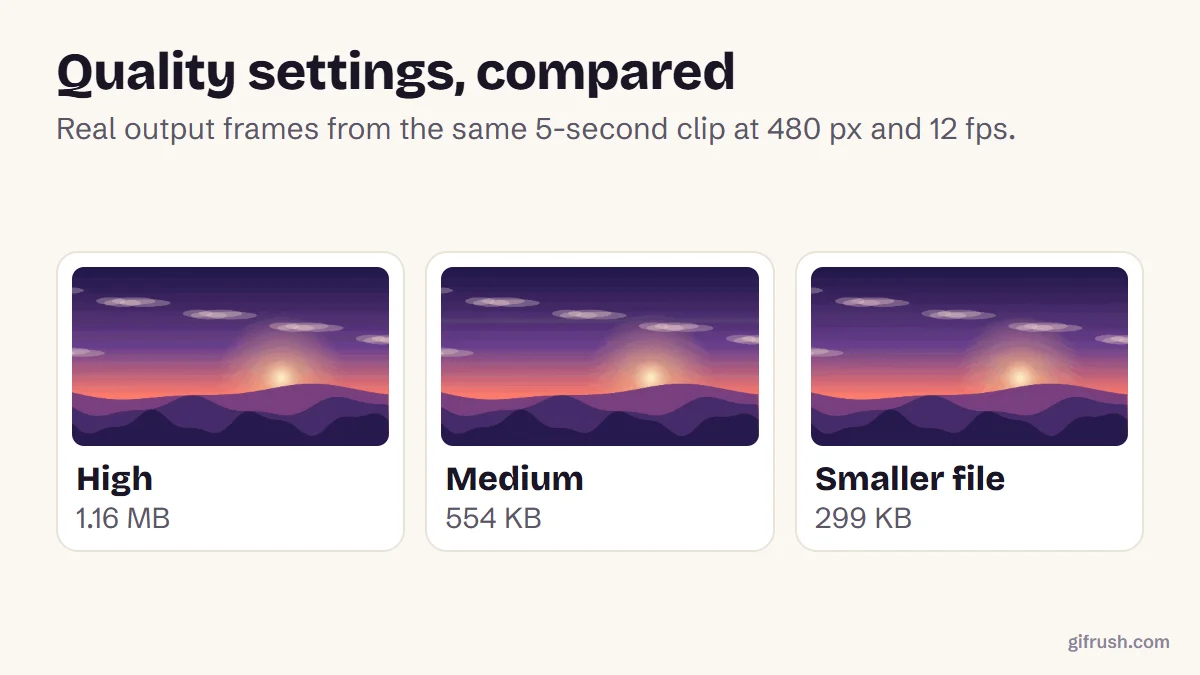
| High | 1.16 MB | Up to 256 colours, no pixel reuse |
| Medium | 554 KB | Up to 192 colours, reuses near-identical pixels |
| Smaller file | 299 KB | Up to 96 colours, reuses more pixels |
One takeaway surprised us. Quality was the most powerful setting, with a 4× difference and only a modest change in how it looked. So if you’re over a size limit, try a lower quality level before shrinking the picture. These numbers come from one test clip, so yours will differ. For length, see how long a GIF can be.
Fixing common MP4 to GIF problems
| Problem | Likely cause | Fix |
|---|---|---|
| The video won’t load | Your browser can’t decode that codec | Try another browser, such as Safari for HEVC files |
| The GIF is too big | Too long, wide or fast | Drop quality first, then frame rate and width, or compress it |
| Motion looks choppy | Frame rate is too low | Try 12–15 fps and a shorter clip |
| Sky or skin looks striped | Colour limit | Use High quality, or choose a different moment |
| Clip is over 30 seconds | The tool’s length limit | Use the Long GIF Maker, or split the clip |
Have a video in another format? Video to GIF also takes WebM and MOV, and our guide to making GIFs from video has advice on choosing clips. If you meant to go the other way, this is how to convert a GIF to MP4.
Convert your MP4 now. It’s free, has no watermark and stays on your device.Open MP4 to GIF
New to this topic? Start with our main guide: How to make a GIF from scratch
Frequently asked questions
How do I convert an MP4 to a GIF?
Open an MP4 to GIF converter, add your file, select up to 30 seconds, set the frame rate, width and quality, then click Convert to GIF and download the result.
Can I convert MP4 to GIF without losing quality?
Not completely. GIF is limited to 256 colours per frame and has no audio. High quality settings and per-frame palettes keep the visible loss small, especially on short, clean clips.
How do I make my MP4 to GIF file smaller?
Shorten the clip, lower the quality setting, and reduce the frame rate and width. In our test, the Smaller file setting cut the GIF to a quarter of the High quality size.
Does an MP4 to GIF conversion keep the sound?
No. The GIF format can’t store audio, so the sound is dropped. If you need to keep it, stay with MP4.
What is the best frame rate when converting MP4 to GIF?
About 15 frames per second for most clips, or 10 to save space. Use 20 to 25 only for fast action, because going from 10 to 25 made our test GIF 2.4 times larger.
How do I convert a GIF back to MP4?
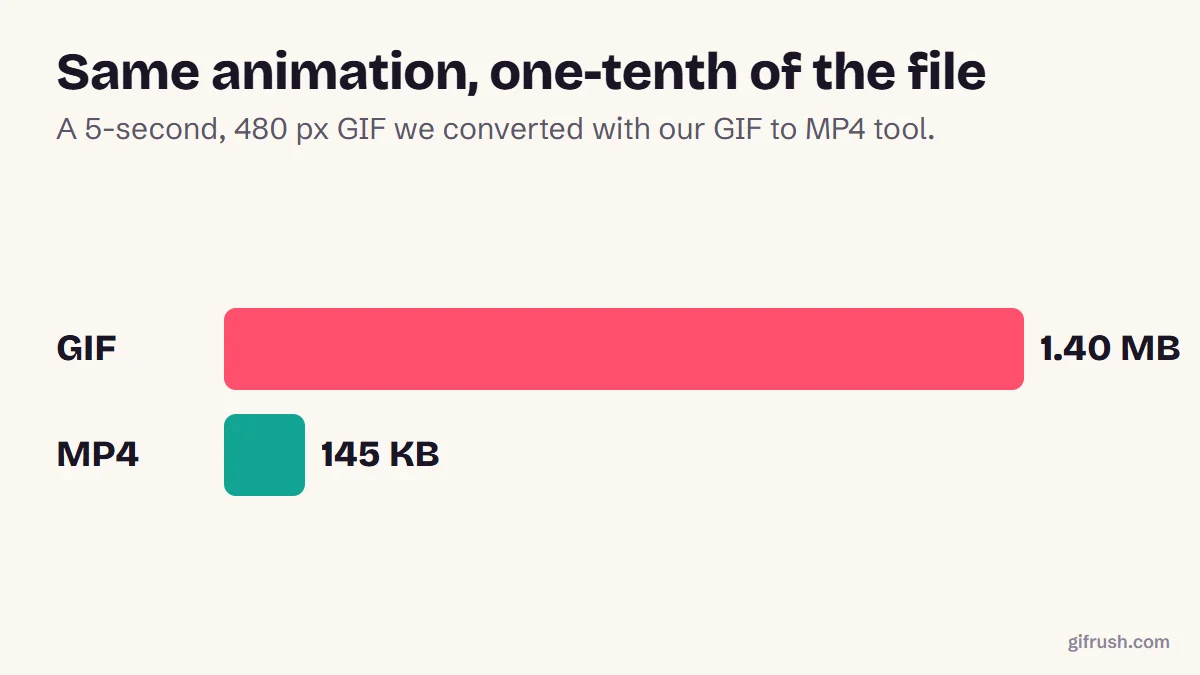
Use a GIF to MP4 converter. It usually gives a much smaller file, but it can’t restore colours lost when the GIF was created, so keep your original MP4 if you can.
Sources
- Graphics Interchange Format, Version 89a (W3C archive of the CompuServe specification)
- Replace animated GIFs with video for faster page loads (web.dev)
Free tools for this
MP4 to GIF
Convert MP4 videos from your phone or camera into high-quality animated GIFs.
Video to GIF
Turn MP4, WebM or MOV clips into smooth looping GIFs. Trim, resize and set the frame rate.
GIF Compressor
Reduce GIF file size with fewer colours, lossy frame diffing, frame dropping and scaling.
GIF to MP4
Convert an animated GIF to an MP4 video that’s much smaller and plays everywhere.