GIF creation · 4 min read
How to turn a GIF into a Live Photo
Quick answer
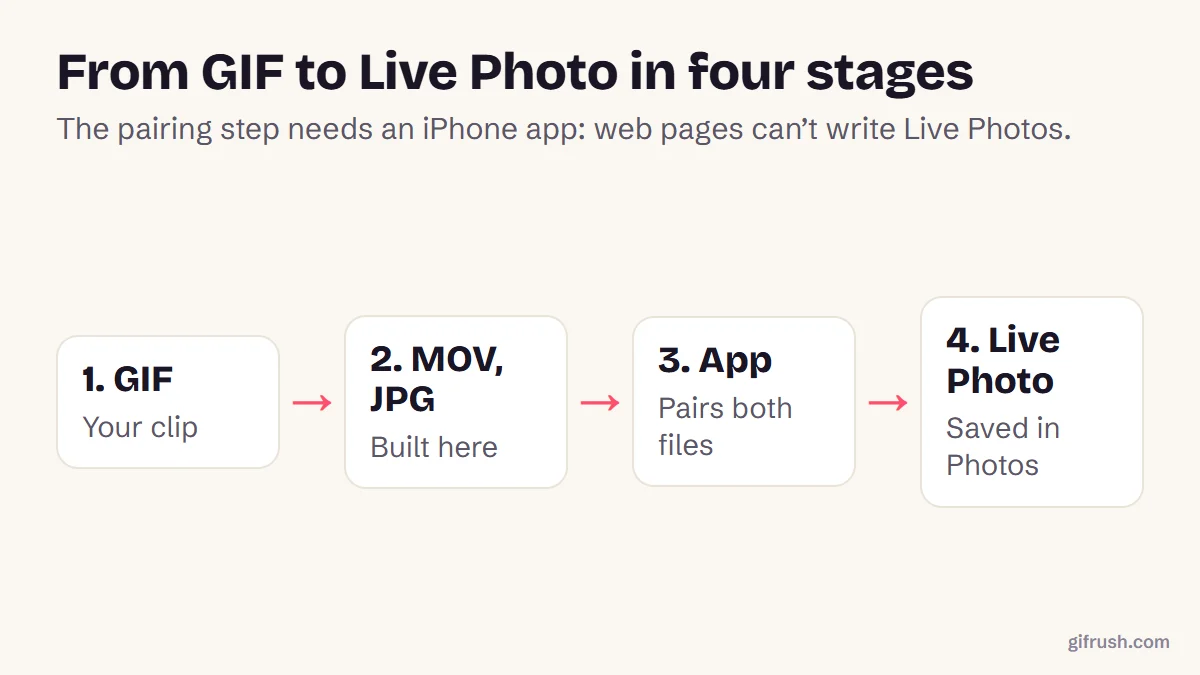
To turn a GIF into a Live Photo, convert it to a MOV video and a matching still, then pair them with a Live Photo app on your iPhone. A website can prepare both files, but only an app can save them to Photos. It can then be set as a wallpaper on iOS 17 or later.
Key takeaways
- A Live Photo is a still and a short video, linked by a matching identifier.
- Websites can prepare the files but can’t write Live Photos into your library, so the last step needs an app.
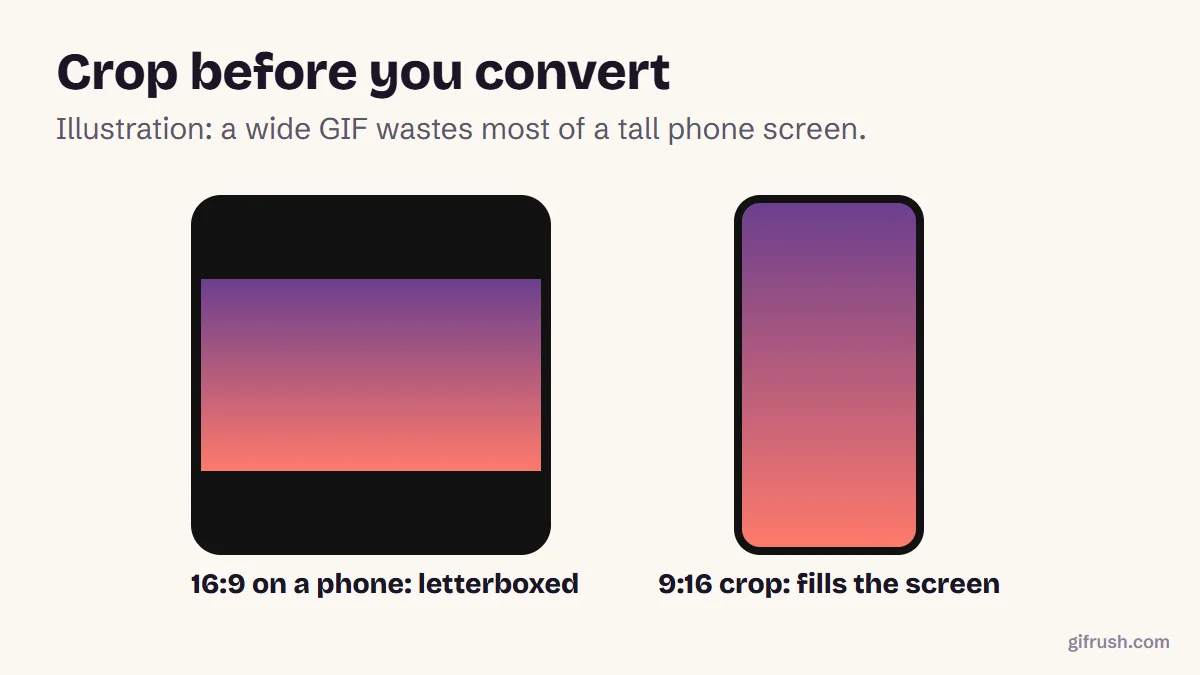
- Crop to a tall shape first if you’re making a wallpaper.
- Live Photo wallpapers need iOS 17 or later.
Can you turn a GIF into a Live Photo directly?
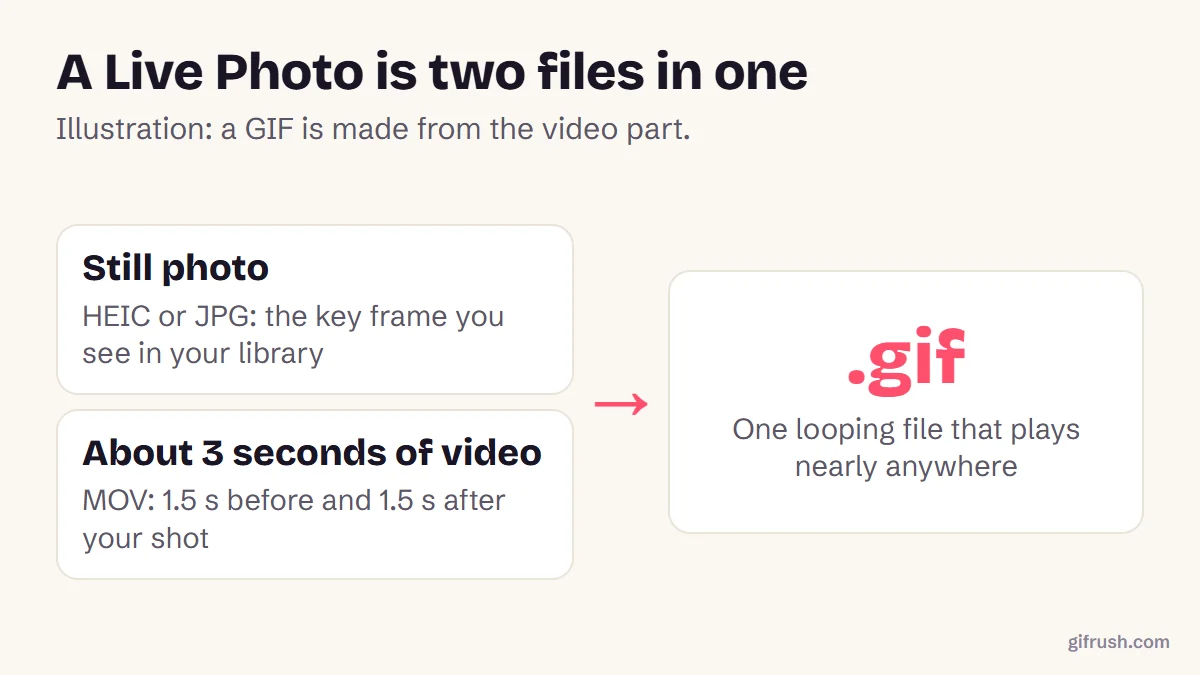
Not in one click. A Live Photo isn’t a single file: it’s a still image and a short video that Apple’s Photos app treats as one item, because they carry matching identifiers in their metadata. Photos creates that link when the camera takes the shot, or when an app saves the two files using Apple’s Photos framework.
A web page has no access to that framework, so no website can place a true Live Photo in your library. What it can do is build the two files correctly, which is the hard part. An app handles the final step.
How to turn a GIF into a Live Photo, step by step
Prepare your GIF
For a wallpaper, crop it to a tall 9:16 shape first. Keep the subject in the centre.
Build the files
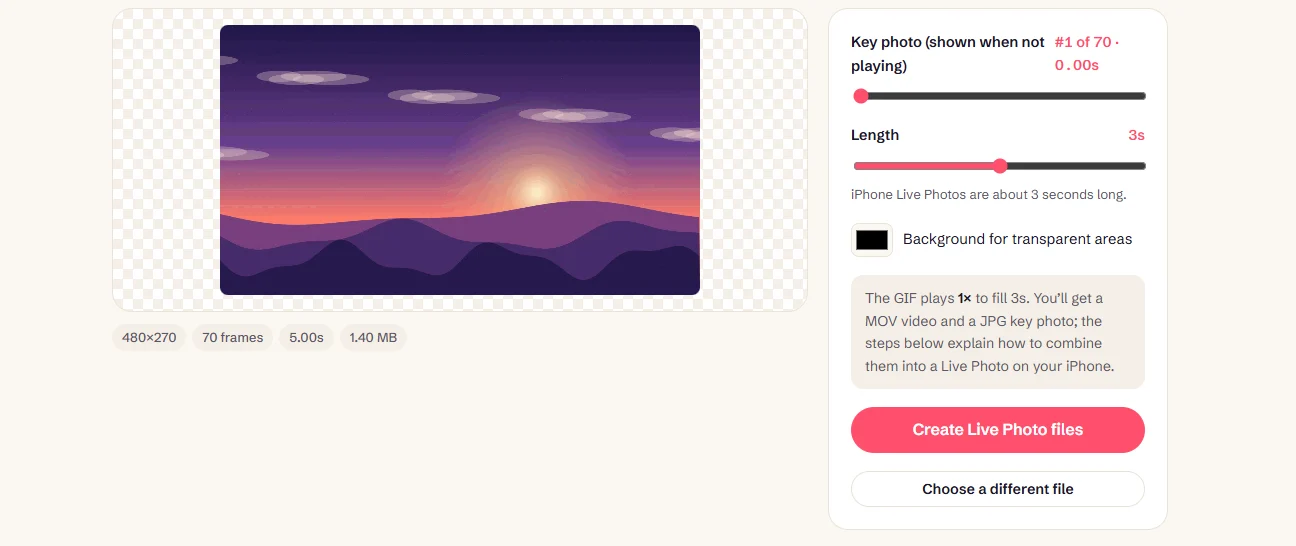
Open GIF to Live Photo and add your GIF. Short GIFs repeat automatically to fill the length.
Pick the key photo and length
Choose the frame that shows when the Live Photo isn’t moving, and a length from 1 to 5 seconds. 3 seconds matches a camera Live Photo.
Download and move to your iPhone
Press Create Live Photo files and download the MOV and JPG, as a ZIP or separately. Use AirDrop, or save them to the Files app.
Pair them in an app
Open both files in a video-to-Live-Photo app from the App Store, such as intoLive. The app saves the result to Photos as a Live Photo.
How to use it as a Live wallpaper
Apple says Live Photo wallpapers require iOS 17 or later. Once the Live Photo is in your library:
- Open Settings and tap Wallpaper, then Add New Wallpaper.
- Tap Photos, then Live Photo, and choose yours.
- Adjust the framing, and leave the play option on so it moves when you wake your iPhone.
- Tap Add, then Set as Wallpaper Pair, or customise your Home Screen separately.
How to check it behaves properly
| What you see | What to try |
|---|---|
| There’s no Live badge in Photos | The app hasn’t paired the files. Open both in the app again and save. |
| It doesn’t move as a wallpaper | Check you’re on iOS 17 or later, and that the play option is on. |
| The picture is blurry | GIFs are often small. Start with the largest version of the GIF you have. |
| Colours look striped | GIF’s 256-colour limit carries over. Use the original video if you have it. |
| The loop jumps | Make it loop more smoothly first, or use Boomerang mode. |
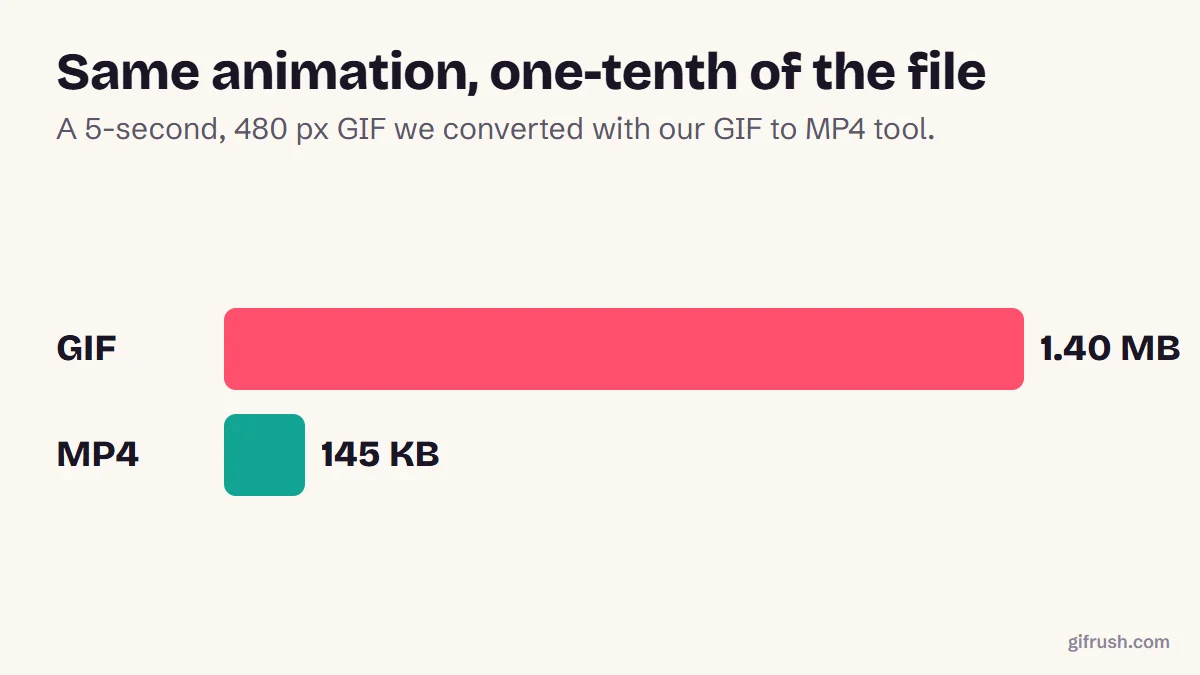
Starting from real video? Skip the GIF altogether, because a video keeps all its colours. You can use any MOV in a Live Photo app directly. For the opposite job, see how to turn a Live Photo into a GIF, and if you just need a plain video, read how to turn a GIF into a video.
Build your MOV and key photo now. It’s free, and your GIF stays on your device.Open GIF to Live Photo
New to this topic? Start with our main guide: How to make a GIF from scratch
Frequently asked questions
Can I turn a GIF into a Live Photo?
Yes, in two stages. Convert the GIF into a MOV video and a still image, then use a Live Photo app on your iPhone to pair them and save the result to Photos.
Why can’t a website save a Live Photo to my iPhone?
iPhones create Live Photos through the camera or through apps using Apple’s Photos framework. A web page can’t use that framework, so it can prepare the files but not save a paired Live Photo.
Can I set a GIF as my iPhone wallpaper?
Not directly. Convert it to a Live Photo first, then choose it in Settings under Wallpaper. Apple says Live Photo wallpapers need iOS 17 or later.
How long should a Live Photo be?
A camera Live Photo lasts about 3 seconds, so that’s a sensible default. GifRush’s tool lets you choose between 1 and 5 seconds.
Will the Live Photo have sound?
No. GIFs have no audio, so a Live Photo made from one will be silent.
Sources
- Set a Live Photo as your Lock Screen wallpaper (Apple Support)
- Bring your photos to life (Apple Support)
- makelive: convert photo and video pairs into Live Photos (GitHub)
Free tools for this
GIF to Live Photo
Prepare a GIF as an iPhone Live Photo: a matching MOV video and JPG key photo.
GIF Cropper
Drag to crop an animated GIF to any area or aspect ratio — square, 16:9, 9:16 and more.
GIF to MOV
Convert GIFs to QuickTime MOV (H.264) for iMovie, Final Cut Pro, Keynote and QuickTime Player.
Reverse GIF
Play a GIF backwards, or make a seamless boomerang that loops forward and back.