GIF editing · 3 min read
How to resize a GIF without losing animation
Quick answer
To resize a GIF without losing the animation, open a GIF resizer such as Resize GIF and enter a new width or pick a percentage. The aspect ratio stays locked unless you unlock it. Click Resize GIF and download. Every frame is resampled and keeps its original timing.
Key takeaways
- A GIF resizer resamples every frame, so the animation and timing are kept.
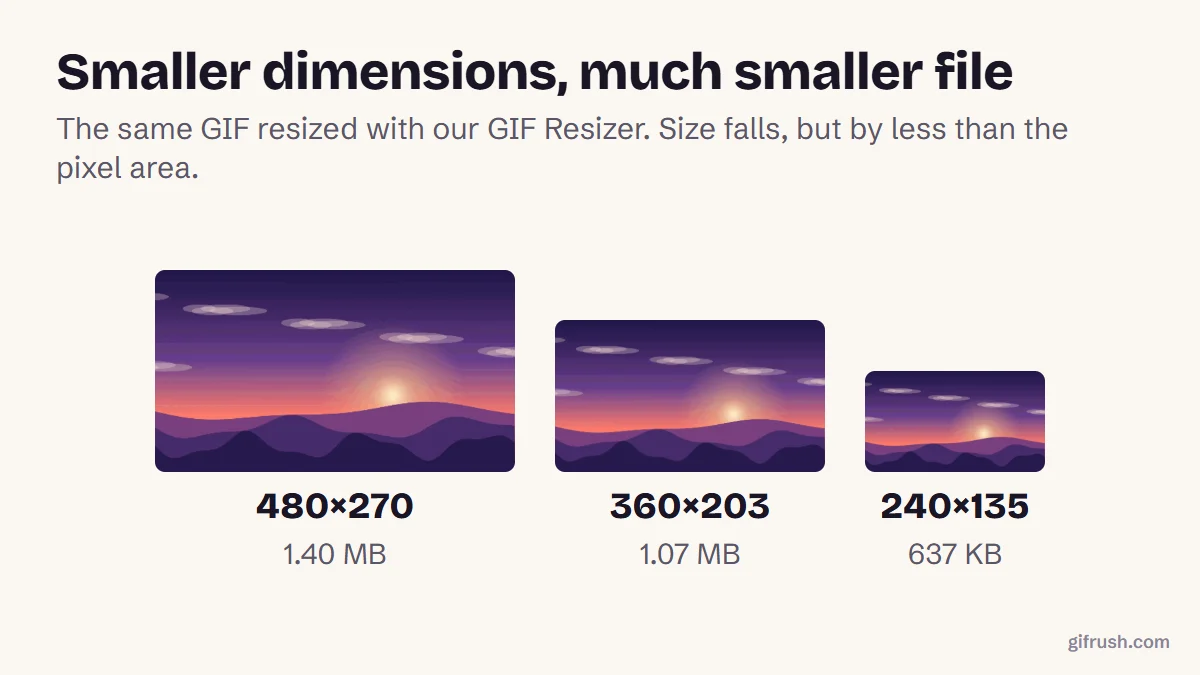
- Shrinking cuts the file size, but by less than the pixel area: our 480 → 240 px resize kept 44% of the size.
- Making a GIF bigger adds pixels, not detail, so it looks soft.
- For most uses, 480 px wide is plenty.
How do you resize a GIF?
Open Resize GIF
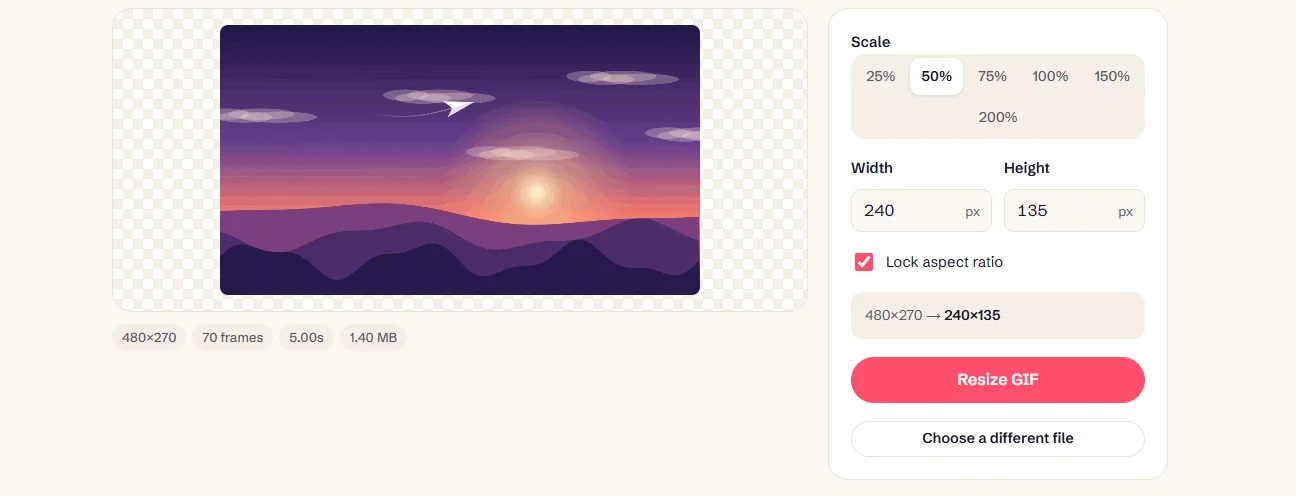
Drop your GIF into Resize GIF.
Choose the new size
Pick a percentage, or type a width or height in pixels, from 16 to 2,000 px.
Keep the shape
Leave Lock aspect ratio on so the GIF isn’t stretched. The tool shows the output size.
Resize and download
Click Resize GIF. Every frame is resampled with smoothing, and its timing is kept.
How much smaller does resizing make a GIF?
Less than you might expect. Halving the width and height leaves a quarter of the pixels, but our 480 × 270 GIF went from 1.40 MB to 637 KB, about 44% of its original size, not 25%.
| Dimensions | Pixels per frame | File size | Share of original |
|---|---|---|---|
| 480 × 270 (original) | 129,600 | 1.40 MB | 100% |
| 360 × 203 | 73,080 | 1.07 MB | 76% |
| 240 × 135 | 32,400 | 637 KB | 44% |
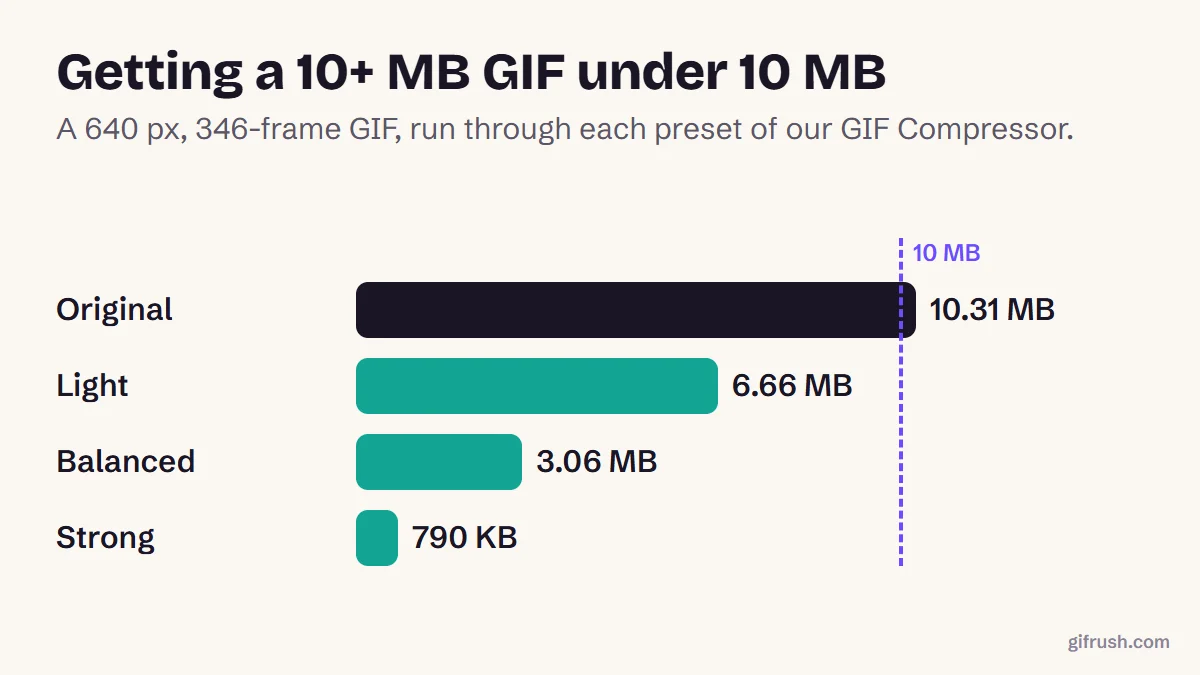
Smoothing blends neighbouring pixels, which creates new colours and fine detail that compress less well. To shrink a file further, compress it after resizing. For hard size limits, see how to make a GIF under 10 MB.
Should you resize before or after other edits?
- Before adding text. Captions drawn at the final size stay crisp, while shrinking a captioned GIF softens the letters.
- After cropping. Crop first to choose what’s in the picture, then resize the result to fit where it’s going.
- Before compressing. Fewer pixels give the compressor less to do, and compression should always come last.
- Once, not repeatedly. Each resize blends pixels again, so go straight to the size you need from the original.
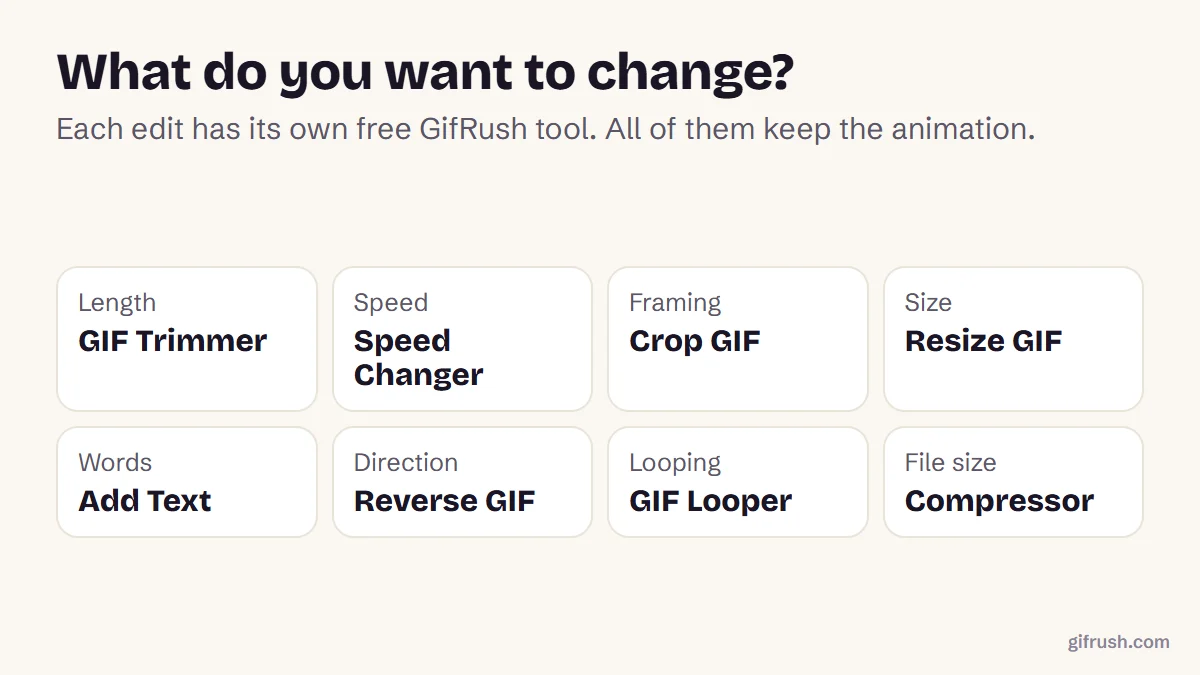
The full recommended order is in how to edit a GIF.
What size should a GIF be?

Want to cut part of the picture away instead of shrinking all of it? That’s cropping. Both are covered in how to edit a GIF.
Resize your GIF now. Every frame and its timing are kept.Open GIF Resizer
New to this topic? Start with our main guide: How to edit a GIF after it is created
Frequently asked questions
How do I resize a GIF?
Open a GIF resizer such as GifRush Resize GIF, enter a new width or choose a percentage, keep the aspect ratio locked, then click Resize GIF and download.
Does resizing a GIF keep the animation?
Yes, with a tool built for GIFs. Every frame is resized and keeps its original delay, so it plays just as before.
How much smaller will my GIF get?
Usually less than the drop in pixels. In our test, halving the width and height reduced the file to about 44% of its size.
Can I make a GIF bigger without losing quality?
Not really. Enlarging spreads the same detail over more pixels, so it looks soft. Remake it from the original video at a larger size instead.
What is the best size for a GIF?
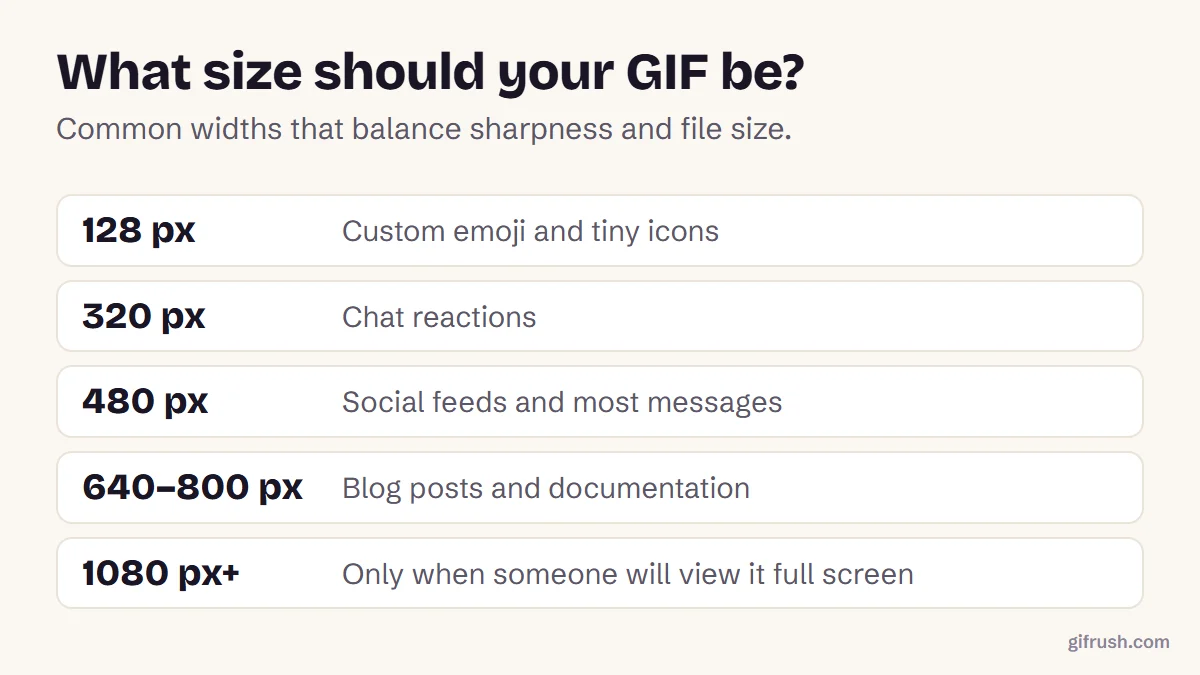
For most uses, 480 pixels wide or smaller. Use about 320 px for chat reactions and 128 px for custom emoji.
Sources
- Graphics Interchange Format, Version 89a (W3C archive of the CompuServe specification)
Free tools for this
GIF Resizer
Scale an animated GIF to an exact width and height, or by percentage, keeping every frame.
GIF Cropper
Drag to crop an animated GIF to any area or aspect ratio — square, 16:9, 9:16 and more.
GIF Compressor
Reduce GIF file size with fewer colours, lossy frame diffing, frame dropping and scaling.
Find more free tools for the same job in the GIF Editor and All GIF Tools.