GIF editing · 4 min read
How to remove the background from a GIF
Quick answer
To remove a GIF’s background, open a GIF background remover, let it detect the background colour or click to pick it, adjust the tolerance, and export with transparency. It works best on solid backgrounds such as green screens or plain white, because GIF transparency is on or off for each pixel.
Key takeaways
- GIF background removal is a colour key: pixels close to the background colour become transparent.
- It works best on solid, even backgrounds, like green screens and plain white.
- Tolerance controls how similar a pixel must be to count as background.
- GIF transparency has no partial levels, so soft edges can show a halo.
How do you remove the background from a GIF?
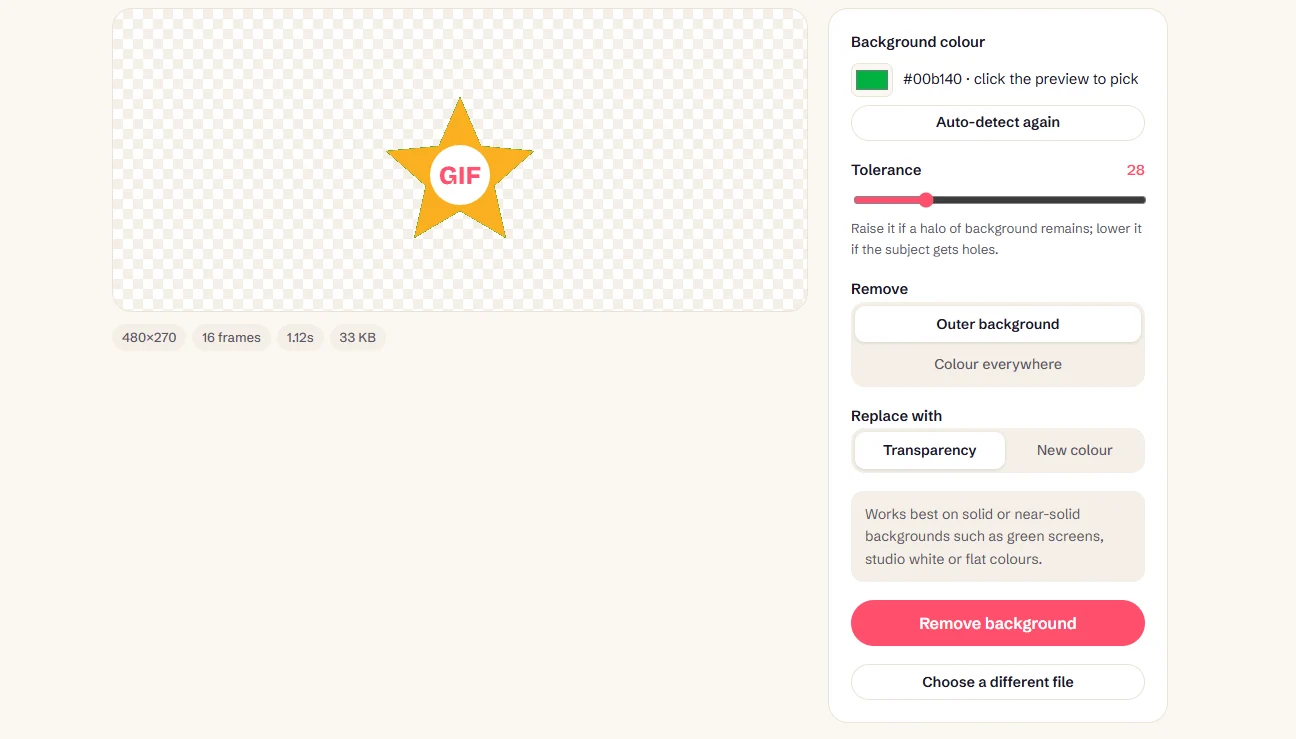
Open the background remover
Drop your GIF into the GIF Background Remover. It detects the background colour from the image border.
Check the colour
If it picked the wrong one, click the background in the preview to choose it.
Adjust the tolerance
Raise it if a halo of background remains, and lower it if holes appear in the subject. The default is 28 on a 0–120 scale.
Choose what to remove
Outer background removes only areas connected to the edges, protecting the subject. Colour everywhere removes that colour anywhere in the frame.
Export
Choose Transparency, or New colour to swap the background, then click Remove background and download.
How does GIF background removal work?
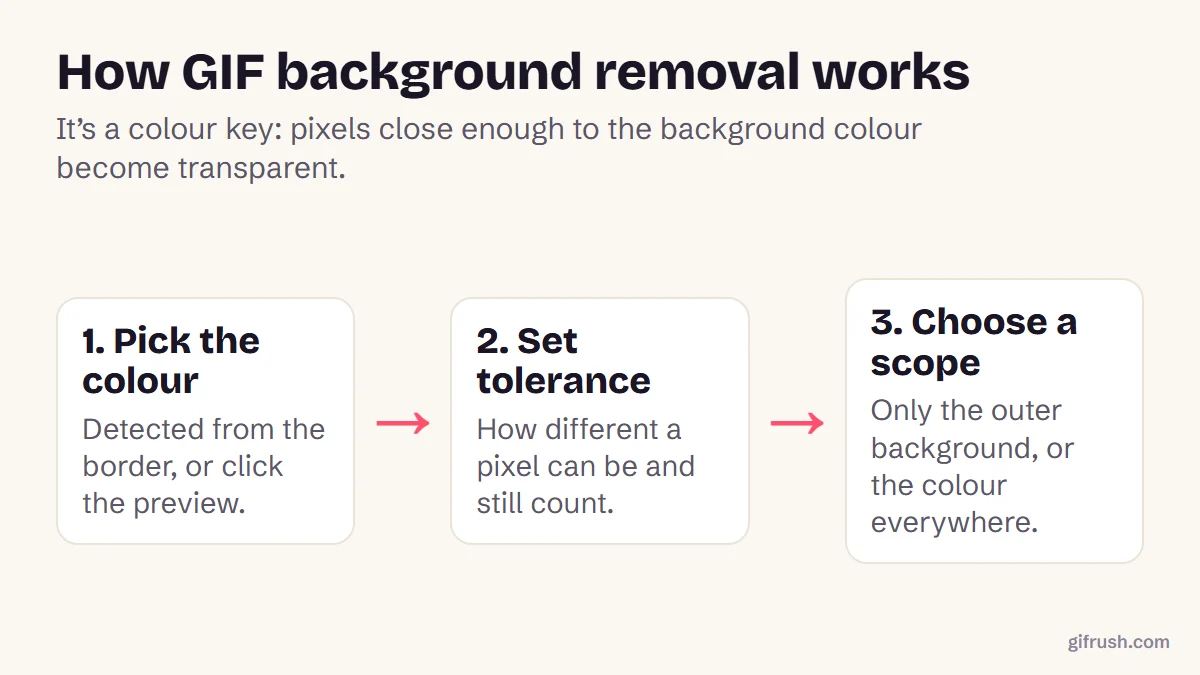
This isn’t AI subject detection. It compares each pixel with the background colour, which makes it fast and predictable, and it works on every frame. It also means it needs a background that’s clearly different from the subject.
How to prepare a GIF for background removal
If you’re making the GIF yourself, a few choices make removal far cleaner:
- Use an even, solid background. A green or blue screen, a plain wall or a flat colour in your design.
- Light it evenly. Shadows and bright spots change the background colour and need a higher tolerance.
- Keep the subject a different colour. Avoid green clothing in front of a green screen, or white objects on white.
- Leave space around the subject. Outer background mode works from the edges inward, so the subject shouldn’t touch them.
- Remove it before compressing. Compression shifts colours slightly, which makes the background less uniform.
What are the limits?
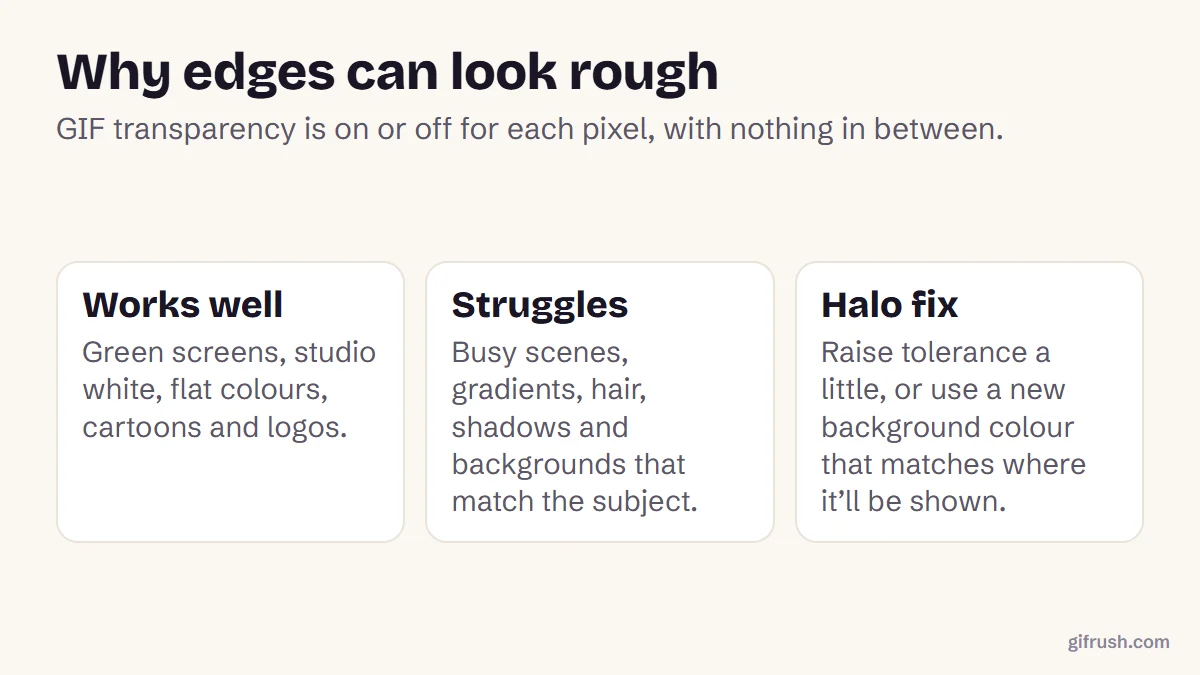
The biggest limit comes from the format. In a GIF, each pixel is either fully transparent or fully solid. Soft, anti-aliased edges that blended into the old background keep a trace of its colour, which shows as a thin halo on a new background. If you know where the GIF will appear, choose New colour and match that background instead. For smooth semi-transparent edges, use a format like APNG, which our GIF to APNG tool can make.
Check the result over the backgrounds you’ll actually use, light and dark. A GIF that looks clean on white can show fringes on black. For other edits, see how to edit a GIF, or blur its edges for a softer look.
Make a GIF’s background transparent. It works on every frame, in your browser.Open GIF Background Remover
New to this topic? Start with our main guide: How to edit a GIF after it is created
Frequently asked questions
How do I remove the background from a GIF?
Open a GIF background remover, let it detect the background colour or click to pick it, adjust the tolerance, choose transparency, then export the new GIF.
Can I remove a busy background from a GIF?
Not well with a colour key. It works best on solid, even backgrounds. Busy scenes need frame-by-frame masking in professional software.
Why does my transparent GIF have a white or coloured edge?
GIF transparency is on or off for each pixel, so blended edge pixels keep some of the old background colour. Raise the tolerance slightly or use a matching new background colour.
Does background removal keep the animation?
Yes. The same removal is applied to every frame, and frame timing is unchanged.
Can I replace a GIF’s background with another colour?
Yes. Choose New colour instead of Transparency and pick the colour you want behind the subject.
Sources
- Graphics Interchange Format, Version 89a (W3C archive of the CompuServe specification)
Free tools for this
GIF Background Remover
Remove a solid background from a GIF to make it transparent, or swap in a new colour.
GIF to APNG
Convert animated GIF to animated PNG (APNG) with identical frames and timing.
Blur GIF
Blur or pixelate a GIF: the whole thing, one area to hide faces or names, or just the edges.
Find more free tools for the same job in the GIF Editor and the GIF Converter.