GIF editing · 4 min read
How to blur the edges of an animated GIF
Quick answer
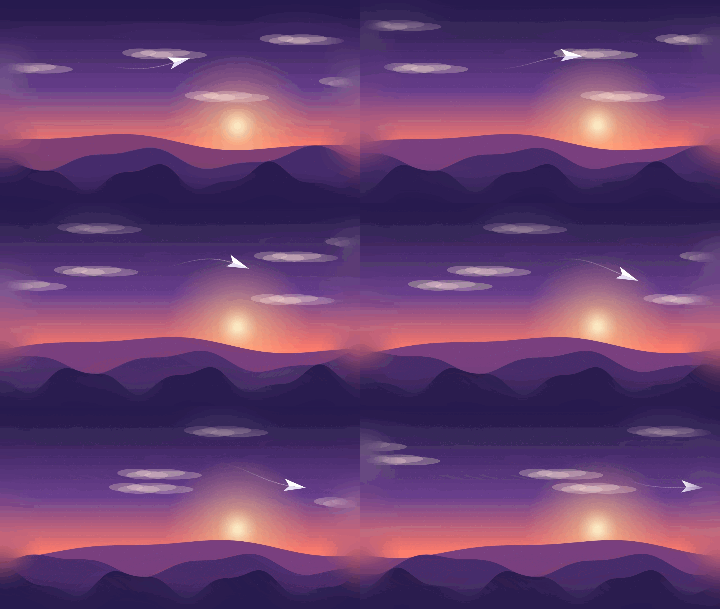
To blur the edges of a GIF, open Blur GIF, choose Edges under Apply to, set the edge width and blur strength, then click Blur GIF. The blur is strongest at the border and fades smoothly into a sharp centre on every frame. The animation and its timing are kept.
Key takeaways
- Edges mode blurs the border and fades it out towards a sharp centre.
- Edge width sets how far in the blur reaches; strength sets how soft it gets.
- It works on every frame, so the animation is kept intact.
- Blurring adds new in-between colours, so expect a larger file. Ours roughly doubled.
How do you blur the edges of a GIF?
Open Blur GIF
Drop your GIF into Blur GIF. Still images work too.
Choose Edges
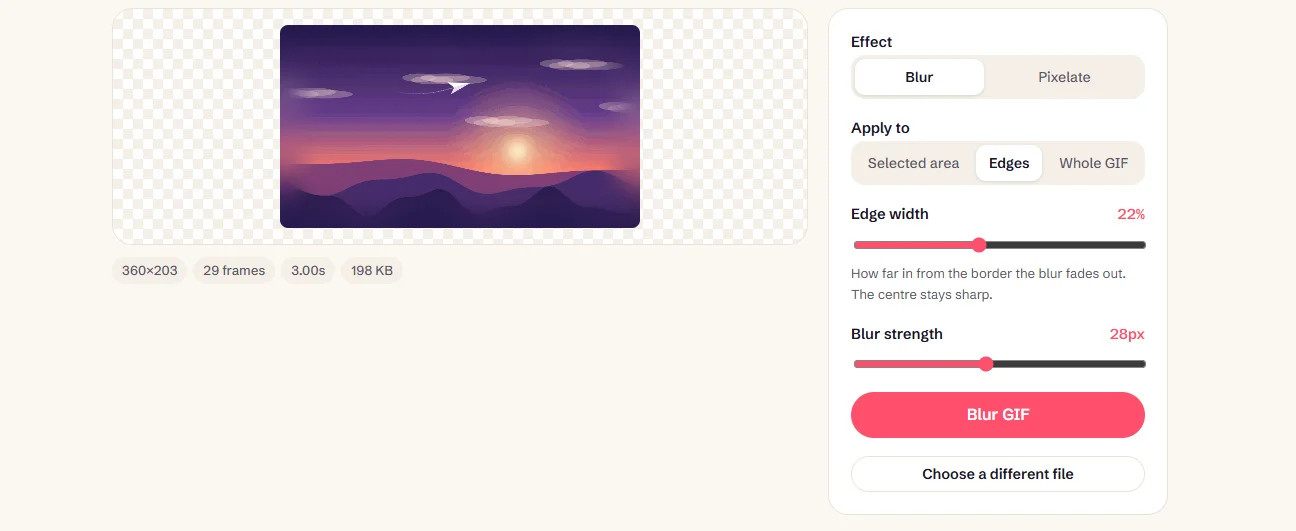
Set Effect to Blur, and Apply to to Edges.
Set the edge width
This is how far in from the border the blur reaches, from 5% to 45% of the GIF’s shorter side. Around 15–25% looks natural.
Set the strength
Higher values make the border softer. The preview updates as you adjust.
Blur and download
Click Blur GIF. Every frame gets the same soft border, and the timing is unchanged.
What does blurring the edges do?
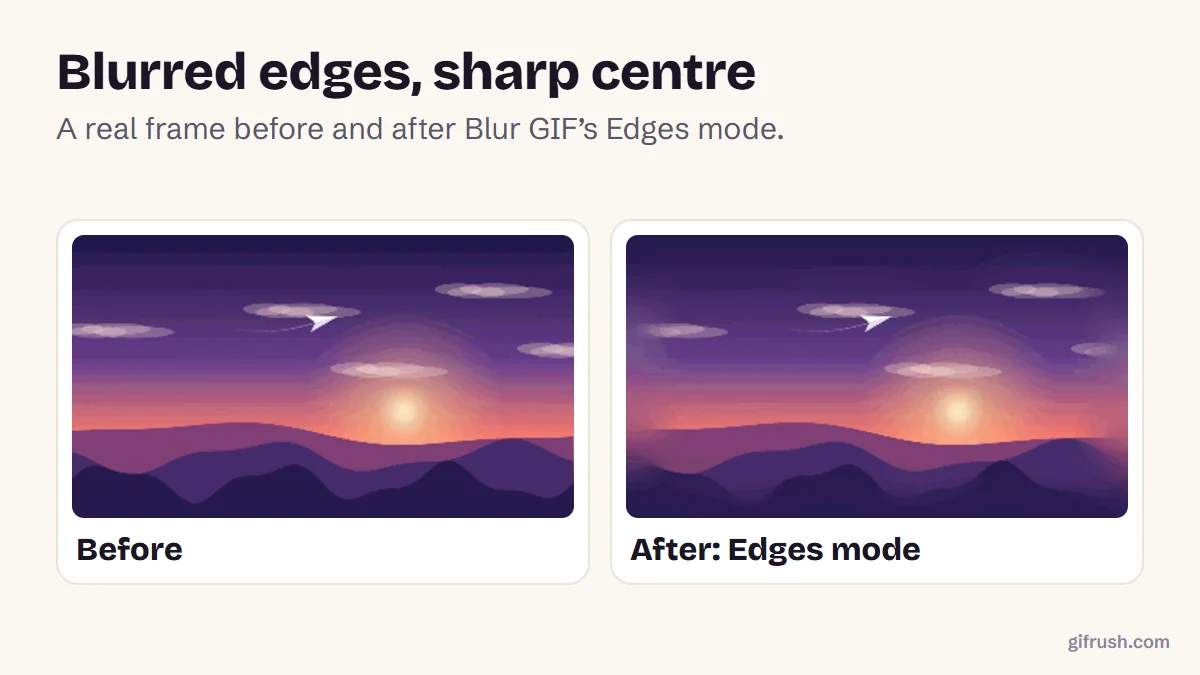
Soft edges pull attention towards the middle of the frame, a little like a camera’s shallow focus. They also hide clutter at the borders of screen recordings, and make a GIF sit more gently on a page. The blend uses a smooth curve, so there’s no visible line where the blur stops.
Blur, crop or vignette?
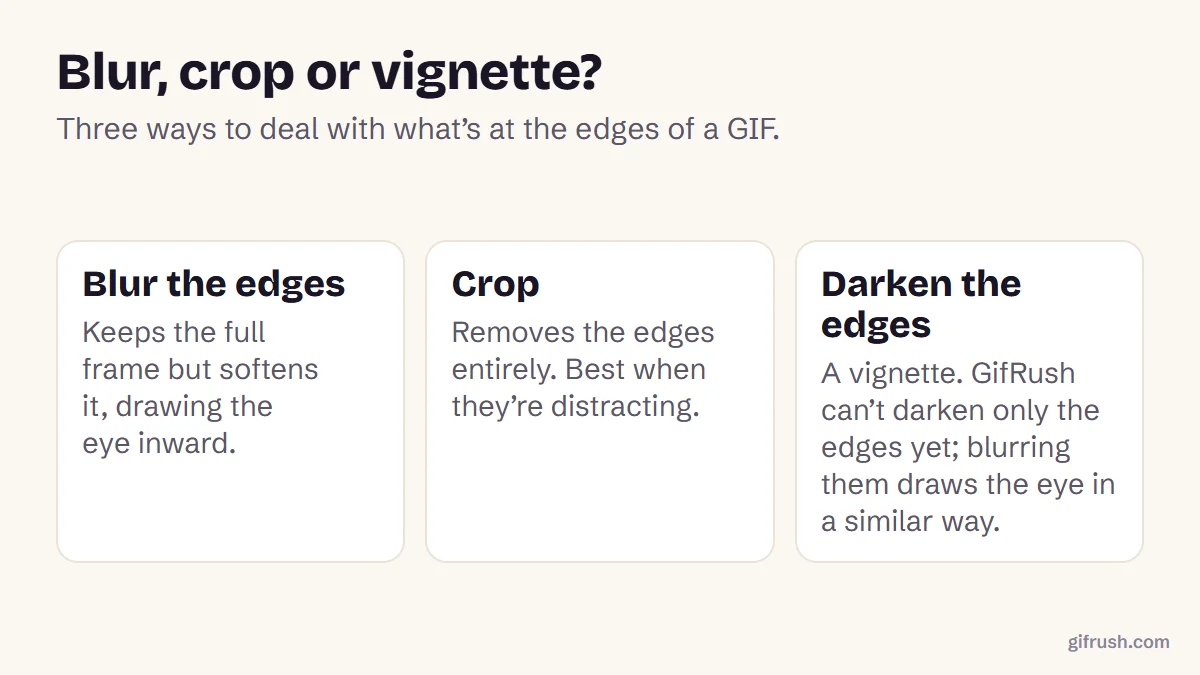
- To remove what’s at the edges, crop the GIF instead.
- To hide one thing, such as a name or a face, use Blur GIF’s Selected area mode.
- To make the background transparent instead, see how to remove a GIF background.
- To fade the edges to transparent, you’d need a format with partial transparency, such as APNG or WebP. GIF pixels are either fully transparent or fully solid.
When do blurred edges work best?
| Type of GIF | Edge width | Strength | Why |
|---|---|---|---|
| Screen recording | 10–15% | 20–30 px | Hides toolbars and clutter at the sides |
| Portrait or face | 20–30% | 15–25 px | Keeps attention on the person |
| Product shot | 15–20% | 10–20 px | A gentle studio-style softness |
| Landscape or scenery | 15–25% | 20–30 px | A dreamy, tilt-shift look |
Avoid Edges mode when important detail sits near the border, such as captions or a subject that moves into the corners. Blur those GIFs with a selected area instead, or crop first so the action sits in the middle. If you’re adding a caption, blur first and caption last, so the text stays sharp.
Does blurring change the file size?
Usually it grows. A blur creates smooth gradients full of new in-between colours, and GIF compression handles those less well than flat areas. Our example went from 198 KB to 416 KB, about twice as large. If that’s a problem, compress the result or use a narrower edge width.
Soften your GIF’s edges in a few seconds. It’s free and private.Open Blur GIF
Blur is one of many edits you can make. See how to edit a GIF for the rest.
New to this topic? Start with our main guide: How to edit a GIF after it is created
Frequently asked questions
How do I blur the edges of a GIF?
Open GifRush Blur GIF, choose Edges under Apply to, set the edge width and blur strength, then click Blur GIF. The blur fades into a sharp centre on every frame.
Will blurring the edges stop my GIF animating?
No. The blur is applied to every frame and the frame timing is unchanged, so the GIF animates exactly as before.
Can I make GIF edges fade to transparent?
Not smoothly. GIF transparency is on or off for each pixel, so soft fades need a format like APNG or WebP. Blurring the edges is the closest effect in a GIF.
Why did my GIF get bigger after blurring?
Blurring adds many new in-between colours, which GIF compresses less efficiently. Our example roughly doubled in size. Compress it afterwards if needed.
Can I pixelate the edges instead?
Yes. Choose Pixelate as the effect with the Edges option for a blocky border that fades into the centre.
Sources
- Graphics Interchange Format, Version 89a (W3C archive of the CompuServe specification)
Free tools for this
Blur GIF
Blur or pixelate a GIF: the whole thing, one area to hide faces or names, or just the edges.
GIF Cropper
Drag to crop an animated GIF to any area or aspect ratio — square, 16:9, 9:16 and more.
GIF Compressor
Reduce GIF file size with fewer colours, lossy frame diffing, frame dropping and scaling.
Find more free tools for the same job in the GIF Editor and All GIF Tools.