GIF editing · 4 min read
How to compress a GIF without ruining it
Quick answer
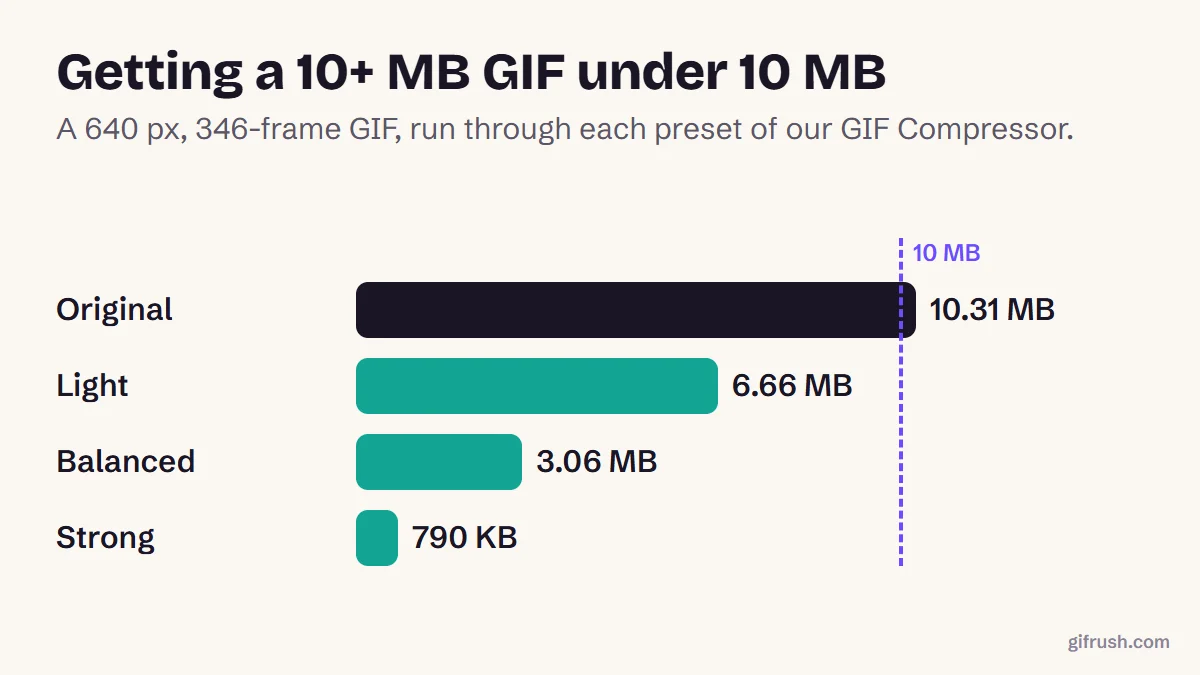
To compress a GIF and keep it clear, use a GIF compressor and start with its lightest setting. Light compression reuses pixels that barely change between frames, which saved 35% in our test without reducing colours. Increase compression one step at a time, and check the result before you download.
Key takeaways
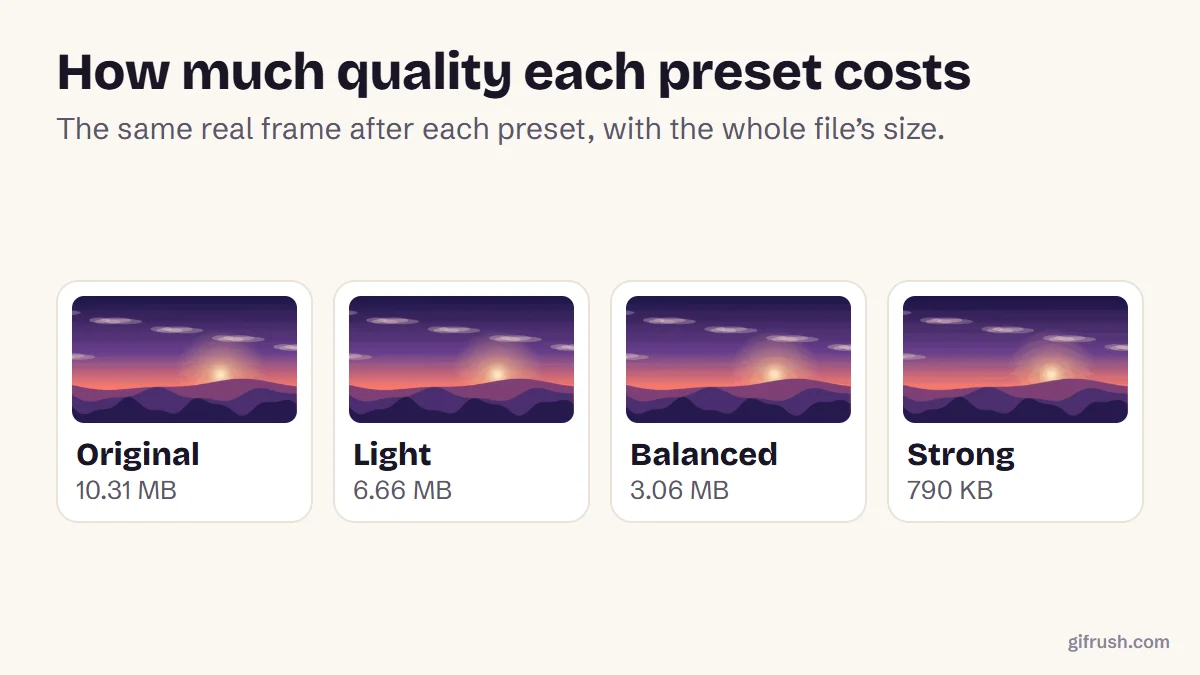
- Start light. Our Light preset saved 35% with no visible difference.
- Balanced saved 70%, and Strong 93%, with clearer trade-offs at each step.
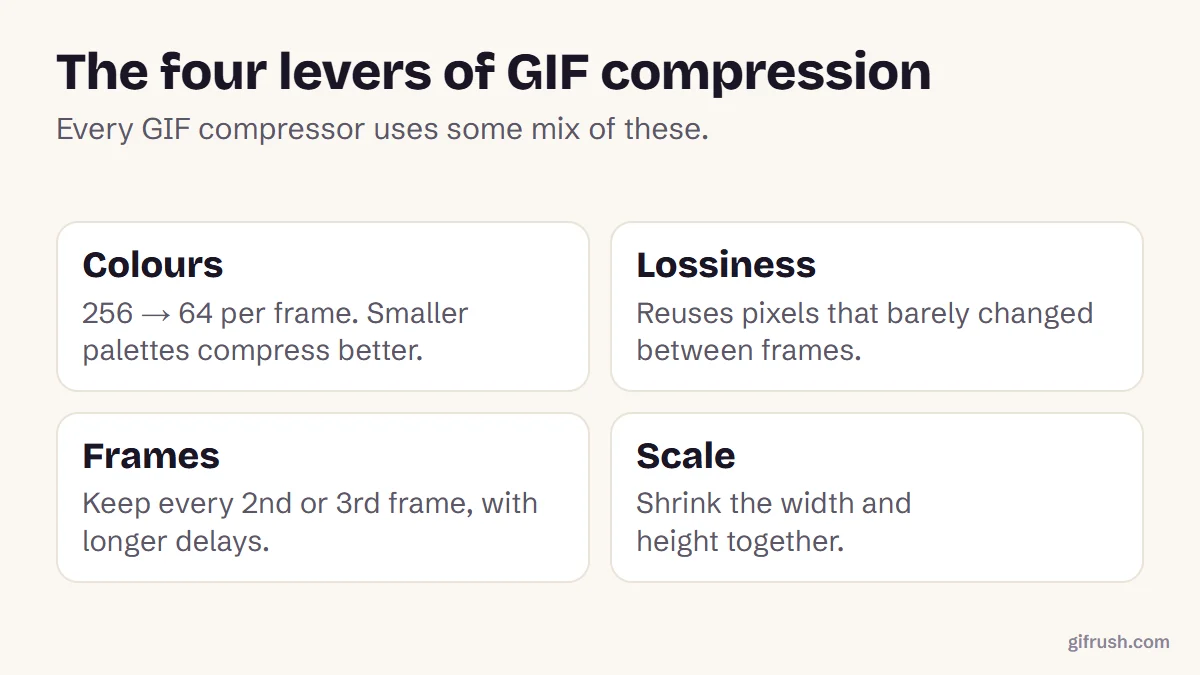
- Four levers do the work: colours, lossiness, frames and scale.
- Compress last, after every other edit.
How do you compress a GIF?
Open the GIF Compressor
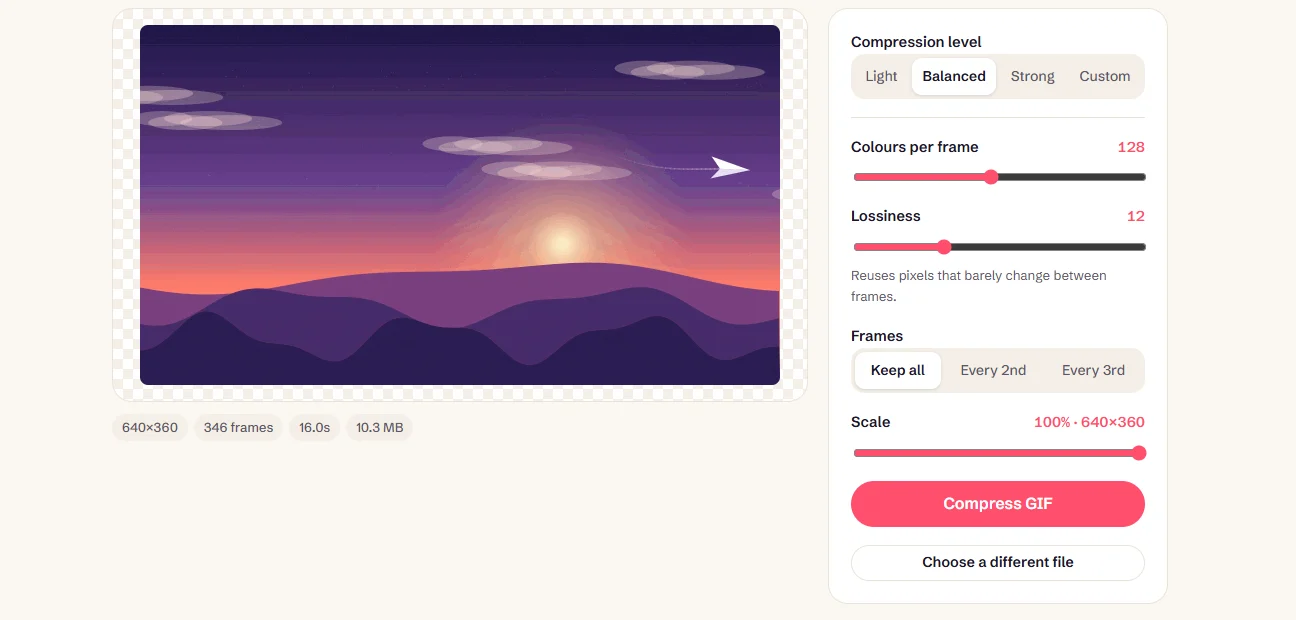
Drop your GIF into the GIF Compressor. It shows the size, frames and dimensions.
Start with Light
Choose the Light compression level and run it. Many GIFs need nothing more.
Step up if needed
If it’s still too big, use “Adjust settings” and try Balanced, then Strong.
Fine-tune with Custom
Change colours, lossiness, frames or scale one at a time to find your own balance.
Compare and download
The result shows the new size and the percentage saved. Download when you’re happy.
How does GIF compression work?
| Preset | What it changes | Size | Saved |
|---|---|---|---|
| Original | 640 × 360, 346 frames | 10.31 MB | — |
| Light | Light pixel reuse, 256 colours | 6.66 MB | 35% |
| Balanced | 128 colours, more pixel reuse | 3.06 MB | 70% |
| Strong | 64 colours, every 2nd frame, 75% scale | 790 KB | 93% |
GIF’s LZW compression shrinks runs of identical pixels. Reusing pixels that barely changed creates more of those runs, which is why lossiness saves so much with so little visible change.
Which compression level should you choose?
| Type of GIF | Start with | Why |
|---|---|---|
| Screen recording or UI demo | Balanced | Flat colours lose nothing visible at 128 colours |
| Cartoon, logo or pixel art | Balanced or Strong | Few colours to begin with |
| Video clip or reaction | Light | Gradients and skin tones band at fewer colours |
| Photo slideshow | Light | Photos need the most colours per frame |
| Fast action | Light, and keep all frames | Dropping frames makes fast motion choppy |
If the result isn’t small enough, change one setting at a time with Custom and compare. Scale is often the gentlest next step for video, while fewer colours suits flat graphics.
How to keep a compressed GIF looking good
- Flat colours survive aggressive settings. Photos and gradients show banding first.
- Watch fast motion when dropping frames. Slow scenes hide it better.
- Avoid compressing twice. Go back to the original and compress once with stronger settings.
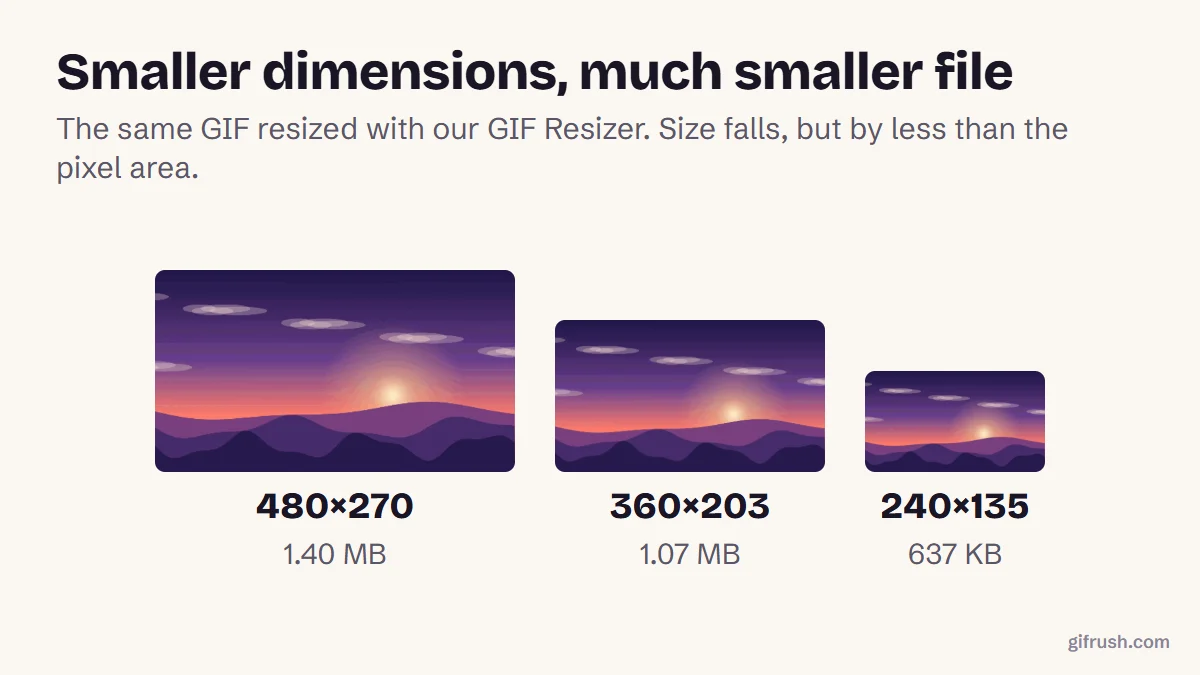
- Trim first. Cutting seconds is free in quality terms, and shrinking dimensions costs little.
Need a specific target? Read how to make a GIF under 10 MB, or see how compression fits with other changes in how to edit a GIF.
Compress your GIF and see exactly how much you save. Nothing is uploaded.Open GIF Compressor
New to this topic? Start with our main guide: How to edit a GIF after it is created
Frequently asked questions
How do I compress a GIF?
Open a GIF compressor, start with the lightest setting, and increase it only if the file is still too big. GifRush’s GIF Compressor shows the saving before you download.
How much can a GIF be compressed?
Typically 30% to 80% without dramatic changes. In our test, Light saved 35%, Balanced 70% and Strong 93%.
Does compressing a GIF reduce quality?
Light settings are hard to notice. Stronger settings remove colours, frames or pixels, which can show as banding, choppier motion or softness.
Can I compress a GIF on my phone?
Yes. The GIF Compressor runs in a mobile browser and processes the GIF on your phone.
Why is my GIF still big after compressing?
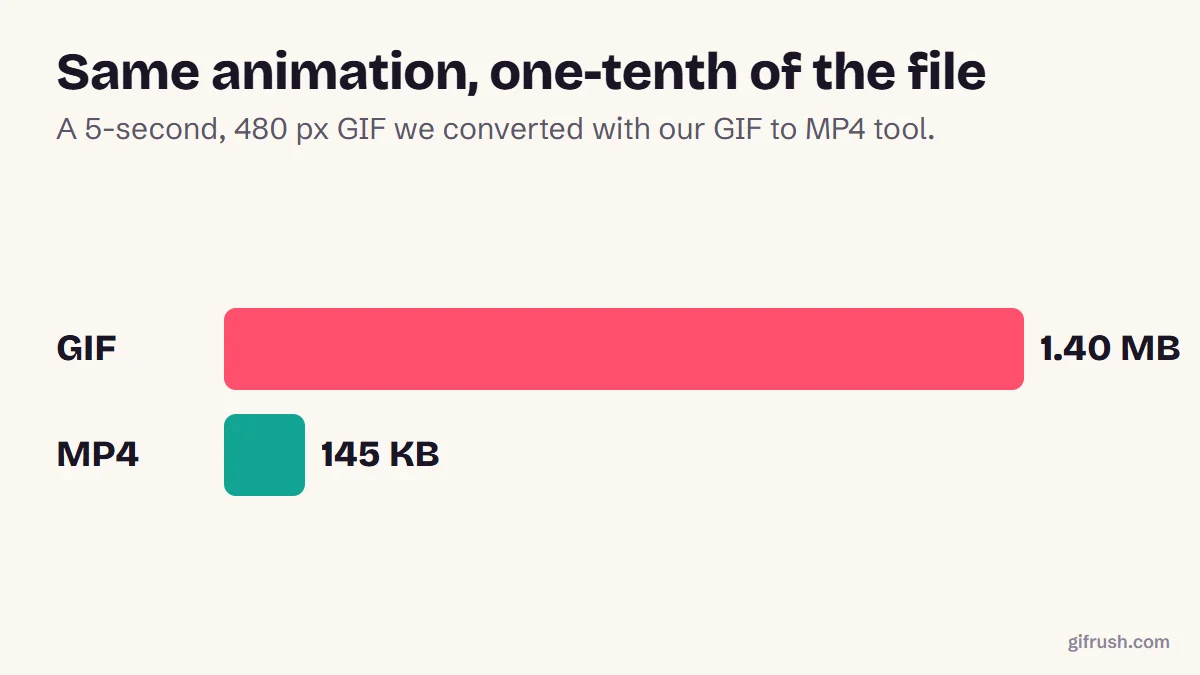
Long or detailed GIFs have a lot of data to start with. Trim it, lower the frame rate, or convert it to MP4, which is usually around 10 times smaller.
Sources
- Graphics Interchange Format, Version 89a (W3C archive of the CompuServe specification)
- Replace animated GIFs with video for faster page loads (web.dev)
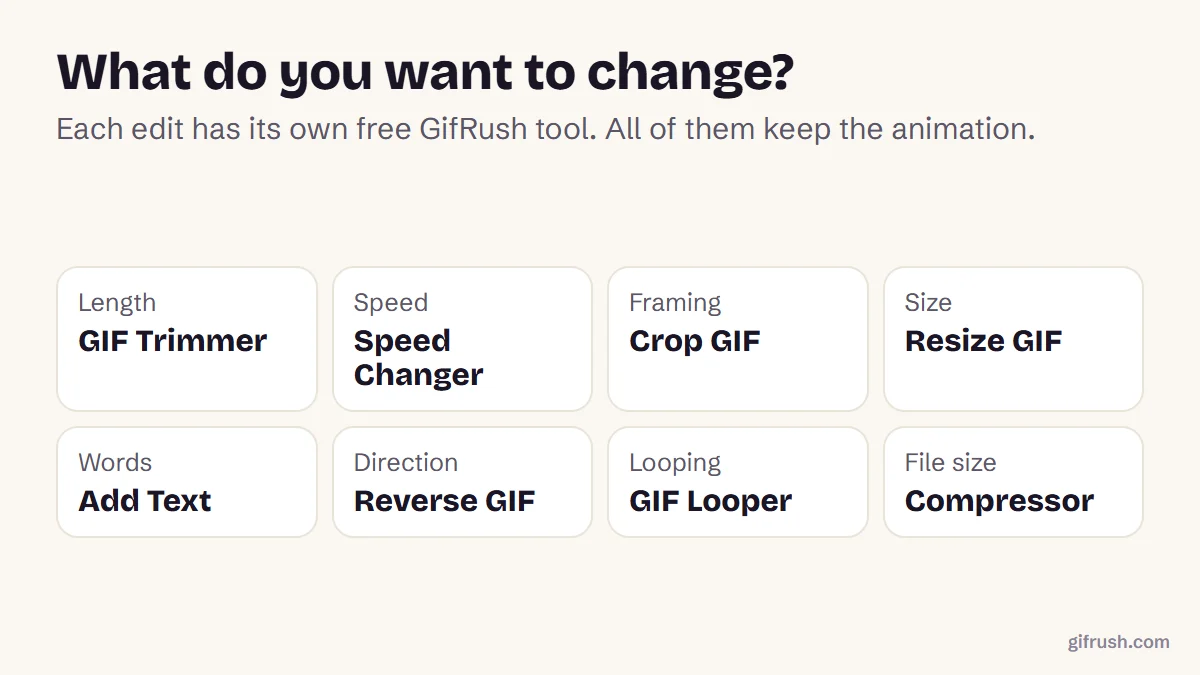
Free tools for this
GIF Compressor
Reduce GIF file size with fewer colours, lossy frame diffing, frame dropping and scaling.
GIF Trimmer
Cut frames from the start or end of a GIF to keep only the part you want.
GIF Resizer
Scale an animated GIF to an exact width and height, or by percentage, keeping every frame.
GIF to MP4
Convert an animated GIF to an MP4 video that’s much smaller and plays everywhere.
Find more free tools for the same job in All GIF Tools, the GIF Editor and the GIF Converter.