GIF editing · 3 min read
How to add text or captions to a GIF
Quick answer
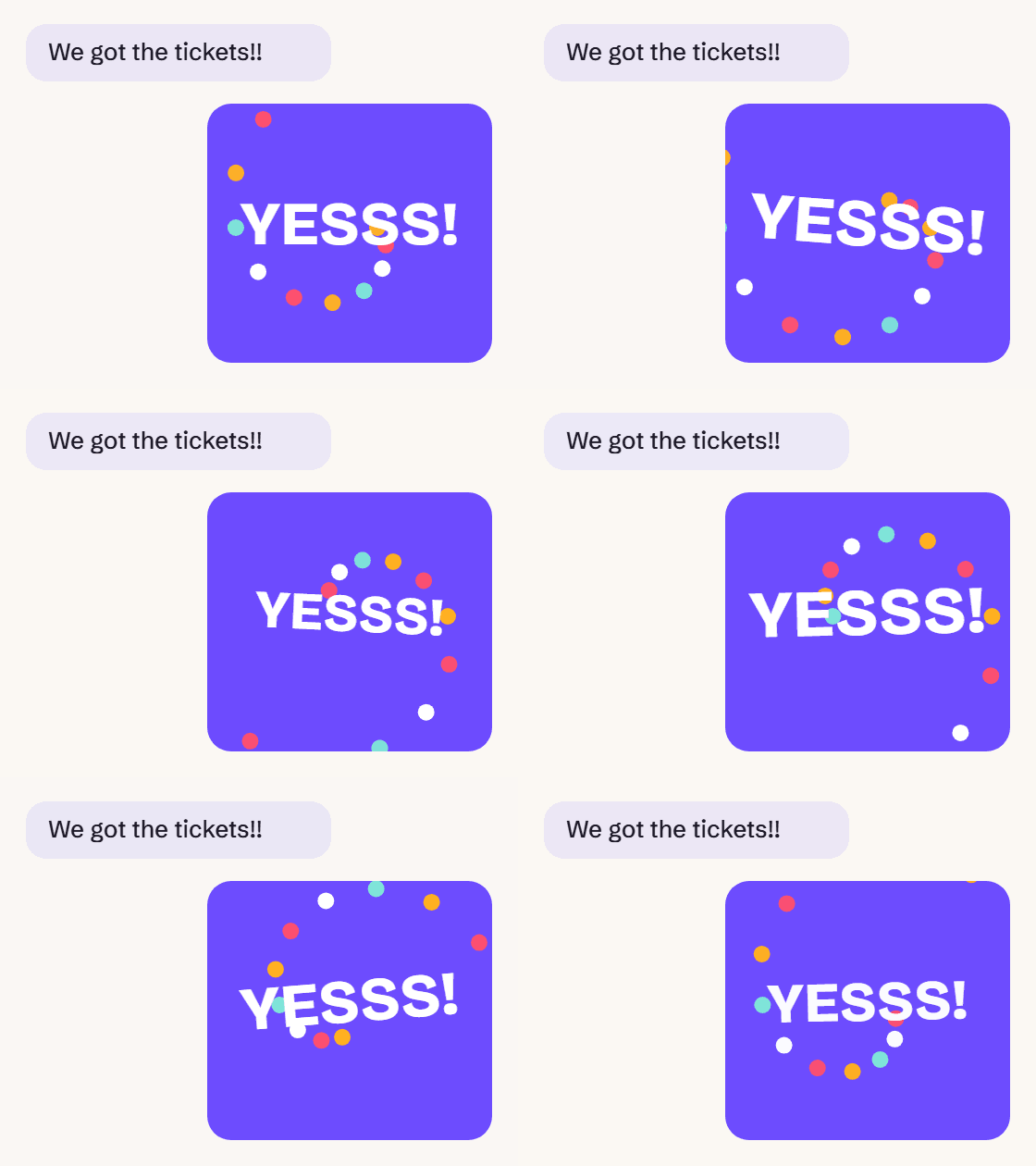
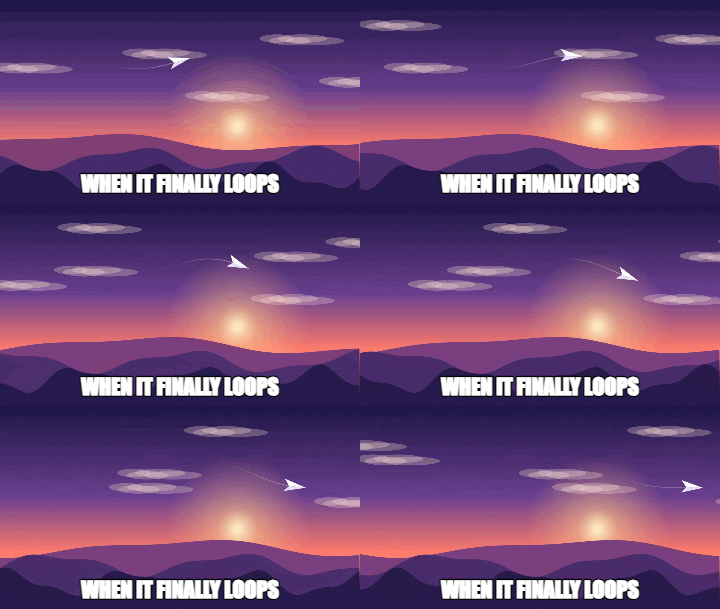
To add text to a GIF, open Add Text to GIF, type a top or bottom caption, choose the size and colours, then click Add text and download. The caption is drawn onto every frame, so it stays visible while the GIF plays. Bold white text with a black outline is the easiest to read.
Key takeaways
- Captions are drawn on every frame, so they’re always visible while it plays.
- White text with a black outline stays readable on any background.
- Keep it short: people need to read it in one or two loops.
- To show different captions at different moments, caption parts separately and join them.
How do you add text to a GIF?
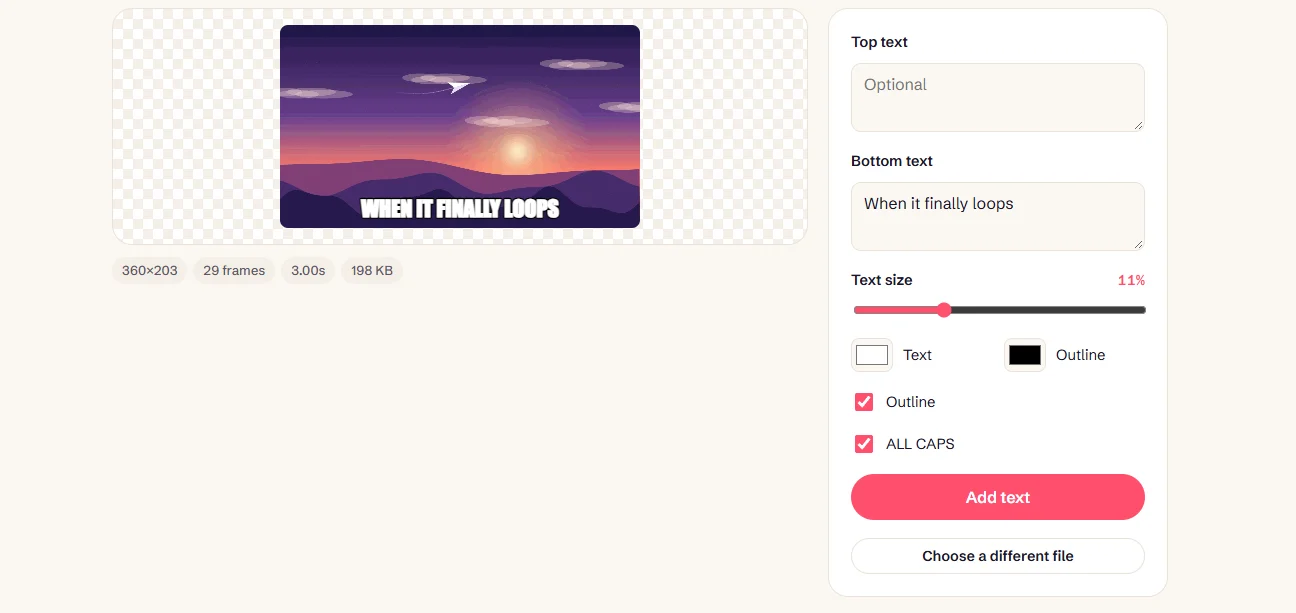
Open Add Text to GIF
Drop your GIF into Add Text to GIF. A preview of the first frame appears.
Type your caption
Use Top text, Bottom text or both. Long captions wrap automatically.
Adjust the style
Set the text size from 5% to 25% of the GIF’s height, pick text and outline colours, and turn ALL CAPS on or off.
Add the text and download
Click Add text. The caption is applied to every frame, and the result has no watermark.
How to make GIF captions easy to read
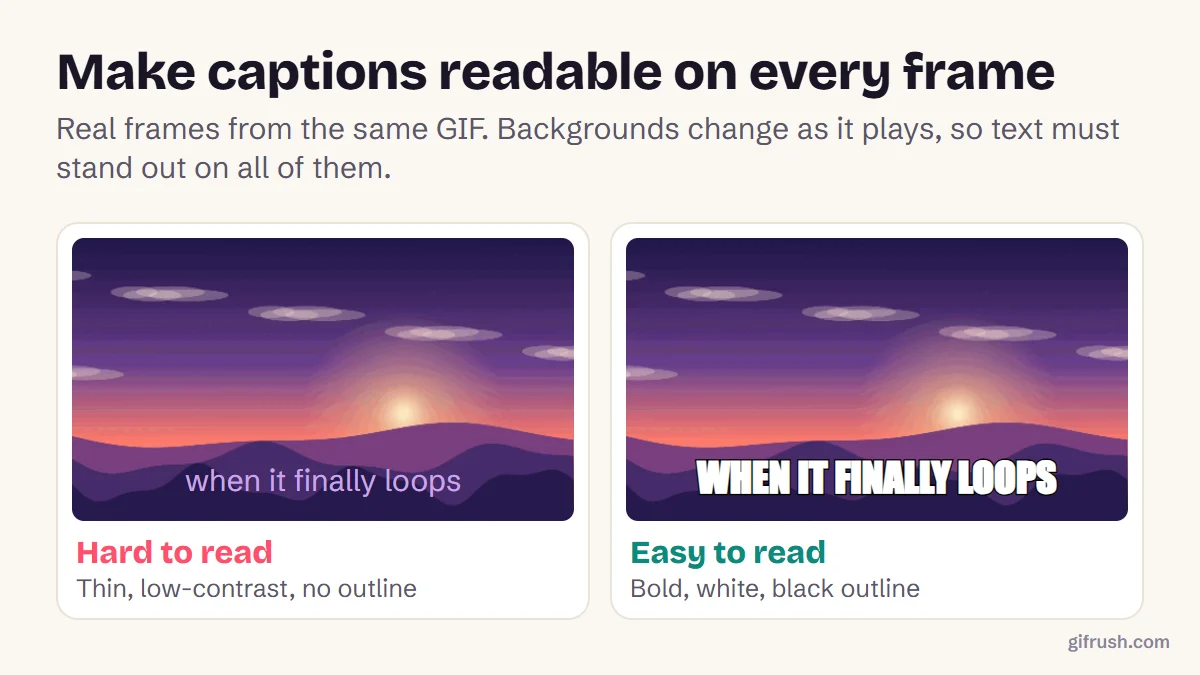
- Contrast: white with a black outline, or black with a white one, works on any frame.
- Size: around 10–15% of the height suits most GIFs. Small text turns to mush after compression.
- Placement: top and bottom keep the middle clear. Check the subject isn’t hidden.
- Length: if people can’t read it in one or two loops, shorten it.
Can text appear at a specific moment?
Add Text to GIF puts the caption on every frame. To show text only at the punchline, or to change it partway through, split the GIF and caption each part:
- Use the GIF Trimmer to save the first part and the second part as separate GIFs.
- Caption each part on its own, or leave one part blank.
- Join them in order with the GIF Combiner, using the sequence layout.
Looking to add a GIF to a text message?
That’s a different job, and people often search for it the same way. To send a GIF in a message, use your keyboard’s or app’s GIF button, which we explain in what GIF means in texting. If a GIF you paste won’t move, see how to copy and paste a GIF.
Caption your GIF now. It’s free, with no watermark.Open Add Text to GIF
New to this topic? Start with our main guide: How to edit a GIF after it is created
Frequently asked questions
How do I add text to a GIF?
Open Add Text to GIF, type a top or bottom caption, choose the size and colours, then click Add text and download. The caption appears on every frame.
What font is best for GIF captions?
Bold, simple letters with a contrasting outline, such as white with black. They stay readable over every frame and survive compression.
Can I add text to only part of a GIF?
Yes, by splitting it. Trim the GIF into parts, caption the ones you want, then join them with a GIF combiner.
Will adding text make my GIF bigger?
Slightly, because the caption adds detail to every frame. Bold, flat captions add little. Compress the GIF afterwards if needed.
How do I add a GIF to a text message?
Use the GIF button in your keyboard or messaging app, or attach a saved GIF file. That sends a GIF, rather than putting text on one.
Sources
- Graphics Interchange Format, Version 89a (W3C archive of the CompuServe specification)
Free tools for this
Add Text to GIF
Put meme-style captions on an animated GIF — top and bottom text, colours and outline.
GIF Trimmer
Cut frames from the start or end of a GIF to keep only the part you want.
GIF Combiner
Merge several GIFs into one — one after another, side by side, or stacked.
Find more free tools for the same job in the GIF Editor and All GIF Tools.