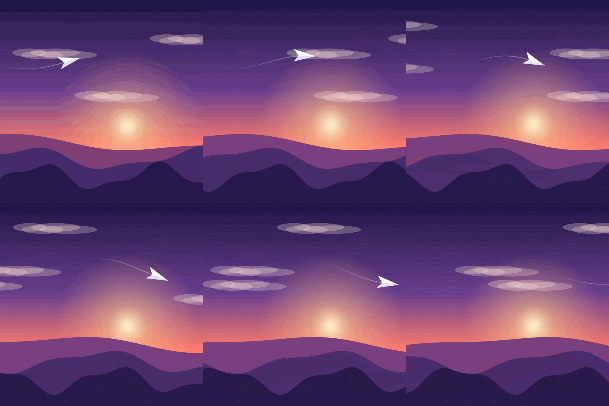
GIF editing · 4 min read
How to edit a GIF after it is created
Quick answer
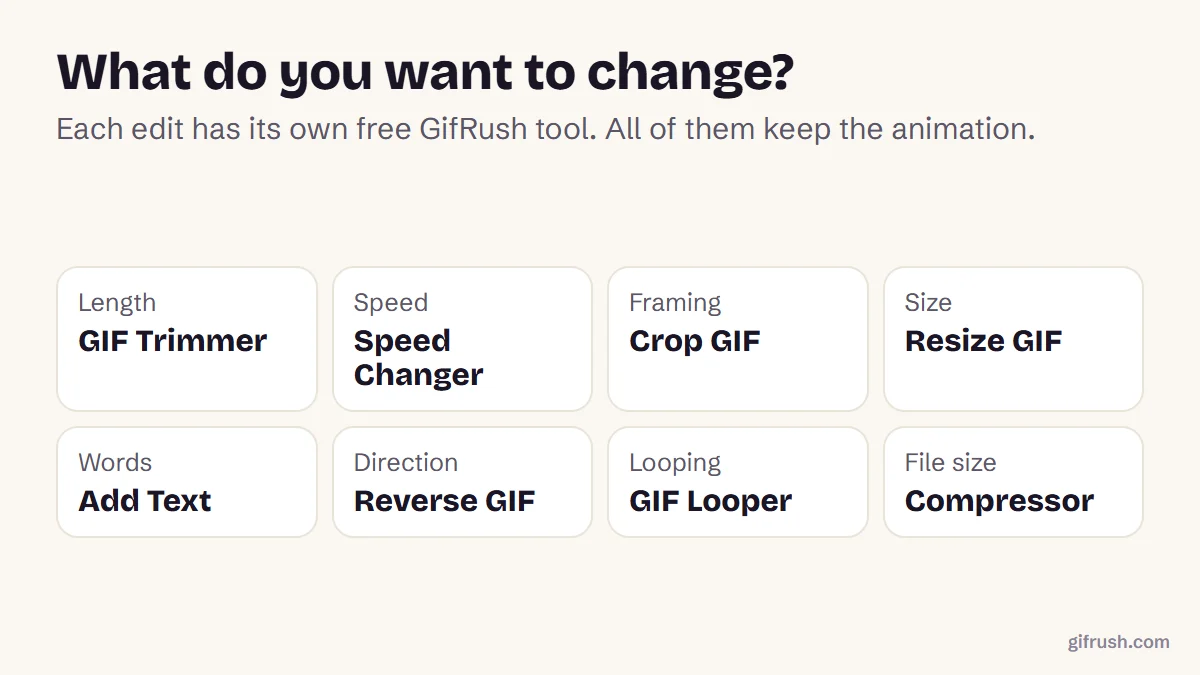
To edit a GIF, open it in an editor that keeps every frame, such as GifRush’s GIF tools, then make one change at a time: trim frames, change the speed, crop, resize, add text or compress. Download the result as a new GIF. Ordinary photo editors often keep only the first frame, which stops the animation.
Key takeaways
- Use an editor that works on every frame. Many photo editors flatten a GIF to one image.
- Every common edit has a tool: trim, speed, crop, resize, text, reverse, loop and compress.
- Edit in order: cut first, polish last, and compress only at the very end.
- Keep your original file so you can go back if an edit doesn’t work out.
Can you edit a GIF after it’s made?
Yes. A GIF is a stack of frames, each with its own timing, so almost anything about it can be changed: how long it is, how fast it plays, how it’s framed, what it says and how big the file is. What you can’t do is recover detail or colours that were lost when the GIF was first made. For that, go back to the original video and make the GIF again.
What can you change in a GIF?
| To change | Use | Guide |
|---|---|---|
| Length | GIF Trimmer | Keep only the frames you need |
| Speed | GIF Speed Changer | From 0.25× to 4× |
| Framing | Crop GIF | How to crop a GIF |
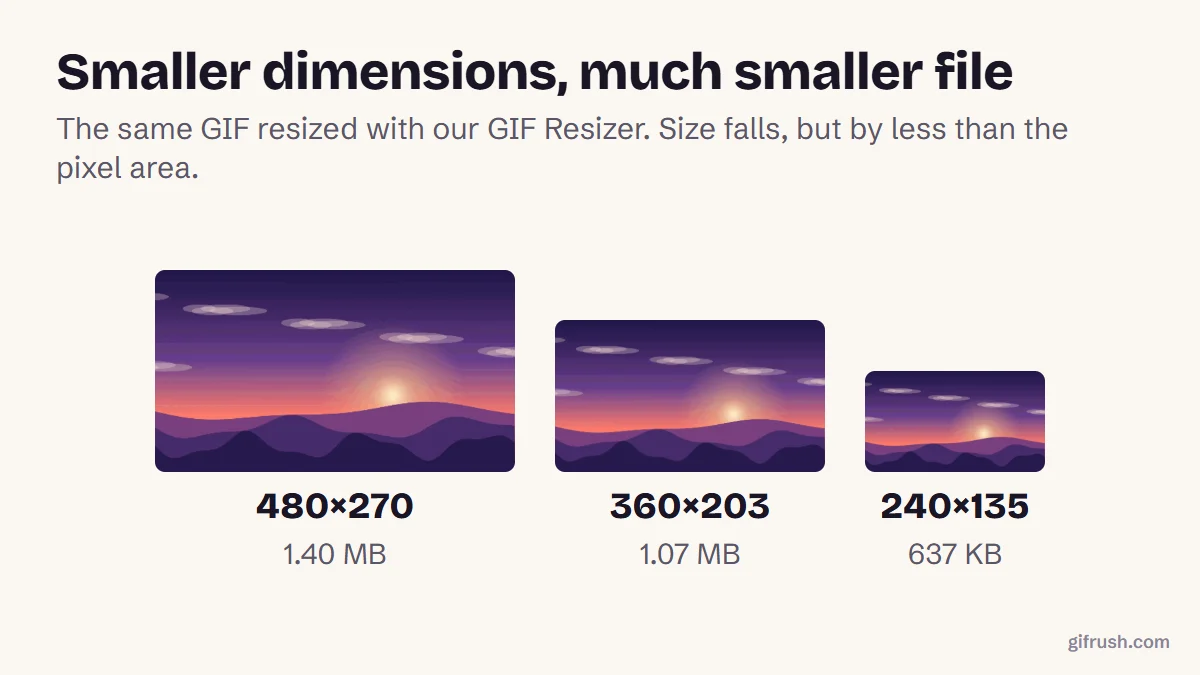
| Dimensions | Resize GIF | How to resize a GIF |
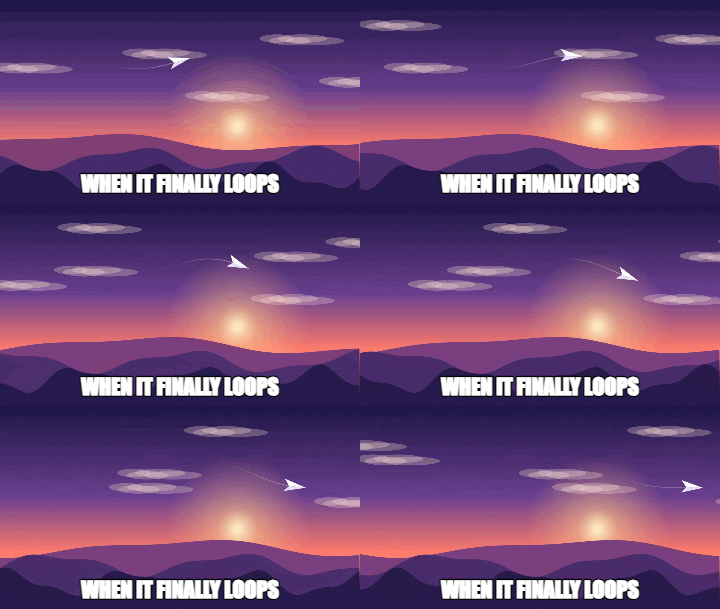
| Words | Add Text to GIF | How to add text to a GIF |
| Edges or areas | Blur GIF | How to blur the edges of a GIF |
| Background | GIF Background Remover | How to remove a GIF background |
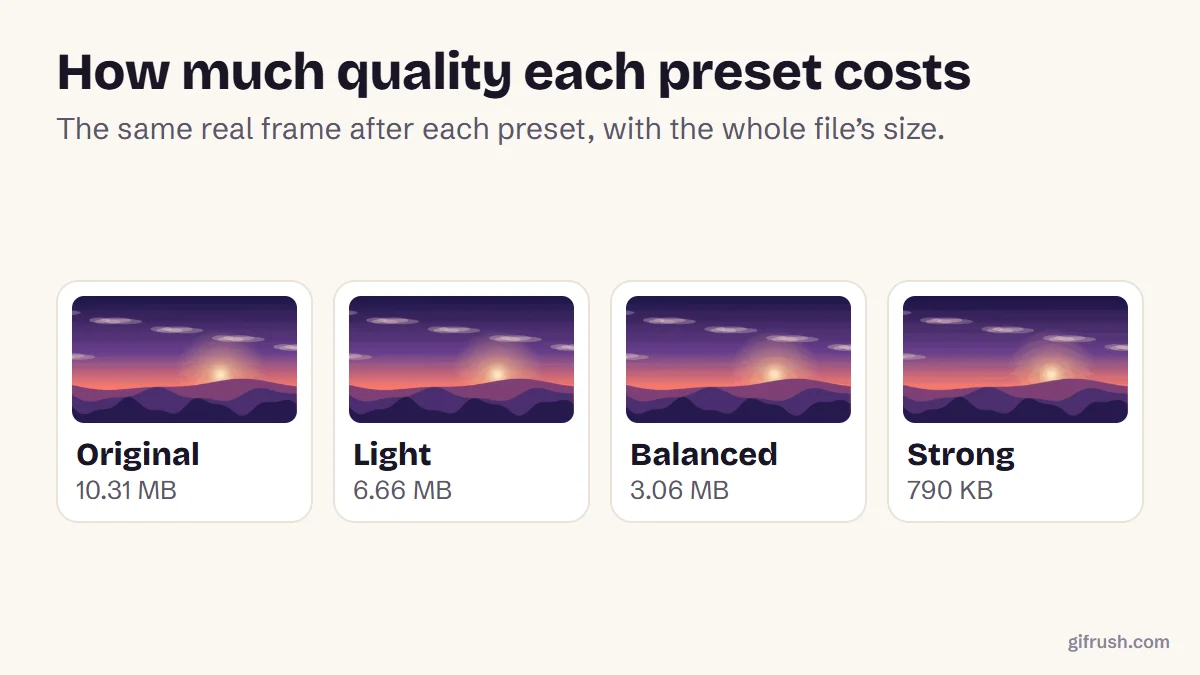
| File size | GIF Compressor | How to compress a GIF |
| Direction or looping | Reverse GIF, GIF Looper | Smooth loops |
How to trim a GIF or change its speed
Open the GIF Trimmer
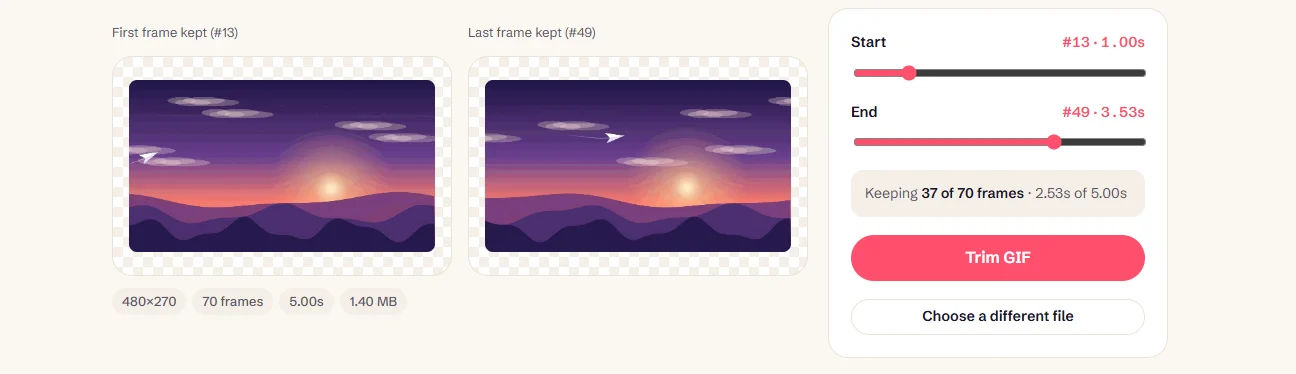
Drop your GIF into the GIF Trimmer. It shows the first and last frame you’re keeping.
Choose the frames to keep
Move the Start and End sliders. The new duration updates as you go, and frame timing inside the range doesn’t change.
Trim and download
Press Trim GIF and download the shorter version.
Adjust the speed if needed
Open the result in the GIF Speed Changer and choose a speed from 0.25× to 4×, or a fixed delay per frame.
In what order should you edit a GIF?
Each time a GIF is saved, its colours are worked out again. Doing edits in a sensible order keeps that from adding up, and also makes each step faster:
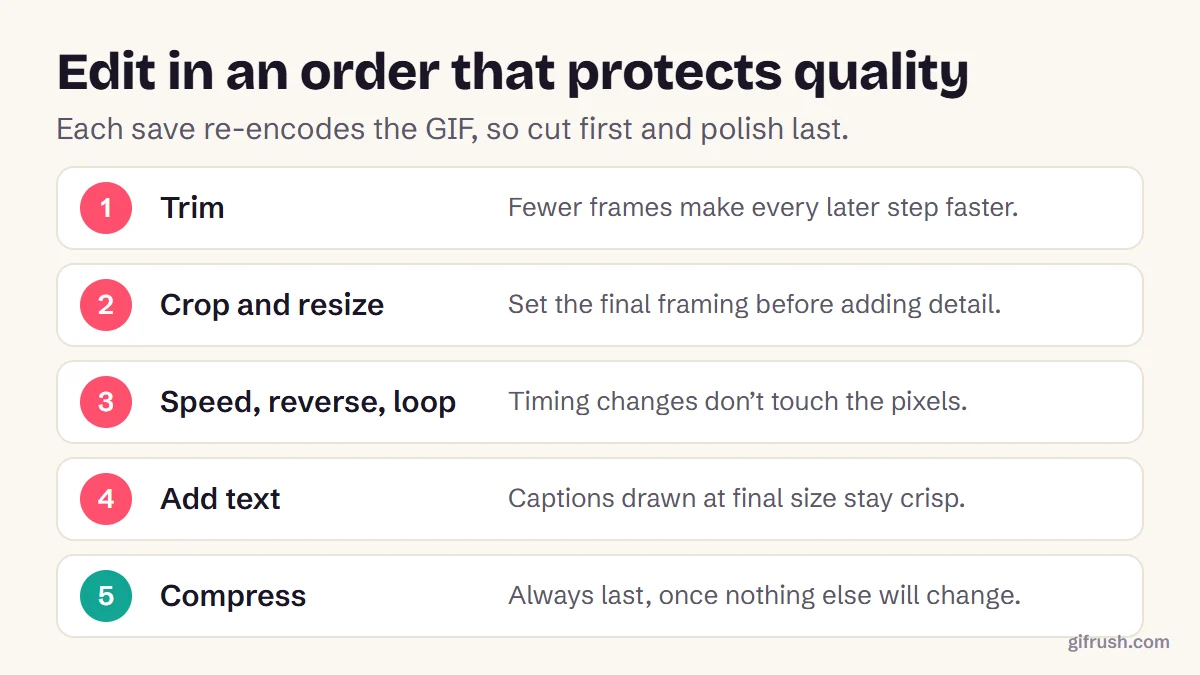
Compressing is always last, because any later edit would rebuild the colours and undo some of the saving. If you need to hit a specific size, see how to make a GIF under 10 MB.
More GIF editing guides
This is the main guide in our GIF editing series. For a specific task:
- Crop an animated GIF
- Resize a GIF without losing animation
- Add text or captions to a GIF
- Blur the edges of a GIF
- Remove the background from a GIF
- Compress a GIF without ruining it
- Make a GIF smaller than 10 MB
- Convert a downloaded WebP file to GIF
- Make a GIF autoplay on a Mac
Start with the most useful edit: cut your GIF down to the moment that matters.Open GIF Trimmer
Frequently asked questions
How do I edit a GIF?
Open it in an editor that handles every frame, such as GifRush’s GIF tools, and make one change at a time: trim, change the speed, crop, resize, add text or compress. Then download the new GIF.
Why does my GIF stop moving after editing?
Many photo editors open only the first frame of a GIF, so saving produces a still image. Use a GIF editor that applies changes to every frame.
Can I edit a GIF on my phone?
Yes. GifRush’s tools run in a phone browser, and your GIF is processed on the phone without being uploaded.
Does editing a GIF reduce its quality?
Each save rebuilds the colour palettes, so many repeated edits can add up. Trim first, compress last and keep your original file.
Can I change the speed of a GIF?
Yes. A speed changer rewrites each frame’s delay. GifRush’s GIF Speed Changer goes from a quarter speed to four times faster.
Sources
- Graphics Interchange Format, Version 89a (W3C archive of the CompuServe specification)
Free tools for this
GIF Trimmer
Cut frames from the start or end of a GIF to keep only the part you want.
GIF Speed Changer
Speed up or slow down a GIF from 0.25× to 4×, or give every frame the same delay.
GIF Cropper
Drag to crop an animated GIF to any area or aspect ratio — square, 16:9, 9:16 and more.
Add Text to GIF
Put meme-style captions on an animated GIF — top and bottom text, colours and outline.
Find more free tools for the same job in the GIF Editor.