GIF creation · 5 min read
How to make a GIF from pictures
Quick answer
To make a GIF from photos, add two or more pictures to a GIF maker such as Images to GIF, put them in order and set a delay for each frame. Use about 0.5 seconds per photo for a slideshow or 0.1 seconds for burst shots, choose a width, then create and download the GIF.

Key takeaways
- Order and timing are the whole job. A GIF simply shows your photos one after another.
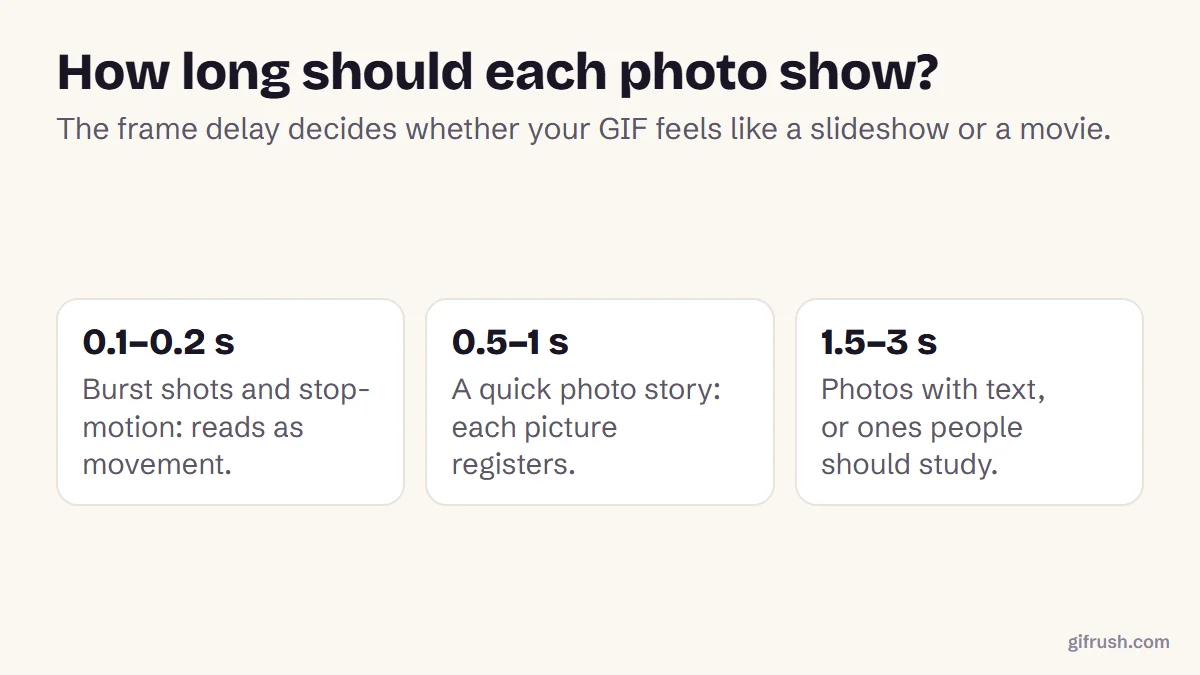
- Use about 0.5–1 s per photo for a story, or 0.1–0.2 s to turn burst shots into motion.
- Photos of different shapes need a rule: fit with bars, or crop to fill.
- Keep it to 480 px wide and a few dozen photos at most. Photos make large GIFs.
How do you make a GIF from pictures?
Any set of photos can become a GIF: holiday shots, a before-and-after, a product from several angles, or a burst of a jump. These steps use our free Images to GIF maker, which works in your browser without uploading your photos.
Choose your photos
Pick between 2 and 200 pictures. JPG, PNG, WebP and iPhone HEIC photos all work.
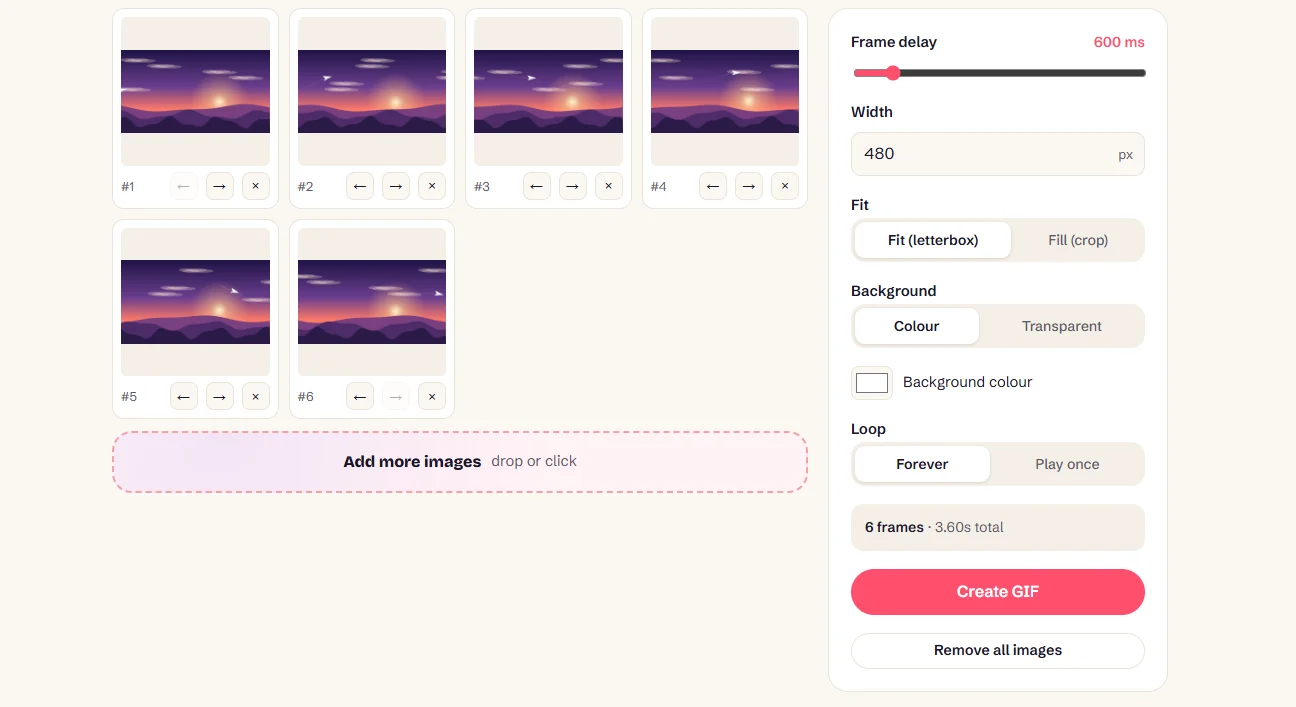
Add them and set the order
Drop them into Images to GIF. Use the arrows on each photo to move it earlier or later, or remove it.
Set the frame delay
This is how long each photo stays on screen, from 20 ms to 5 seconds. Start with 500–600 ms for a slideshow.
Choose size and fit
Set the width. If your photos have different shapes, choose Fit to show each whole photo with bars, or Fill to crop them.
Set the loop and create
Keep Loop on Forever for a repeating GIF, then press Create GIF and download it.
How long should each photo show?
Every photo uses the same delay in Images to GIF. If you want to hold one picture longer, such as the final shot, add it two or three times in a row. GIF stores each frame’s timing separately, in hundredths of a second, so you can also fine-tune individual frames later with the GIF Speed Changer.
What if the photos are different sizes?
A GIF has one canvas size for every frame, so photos of different shapes have to be fitted into it. Phone portraits mixed with landscape shots are the usual problem.
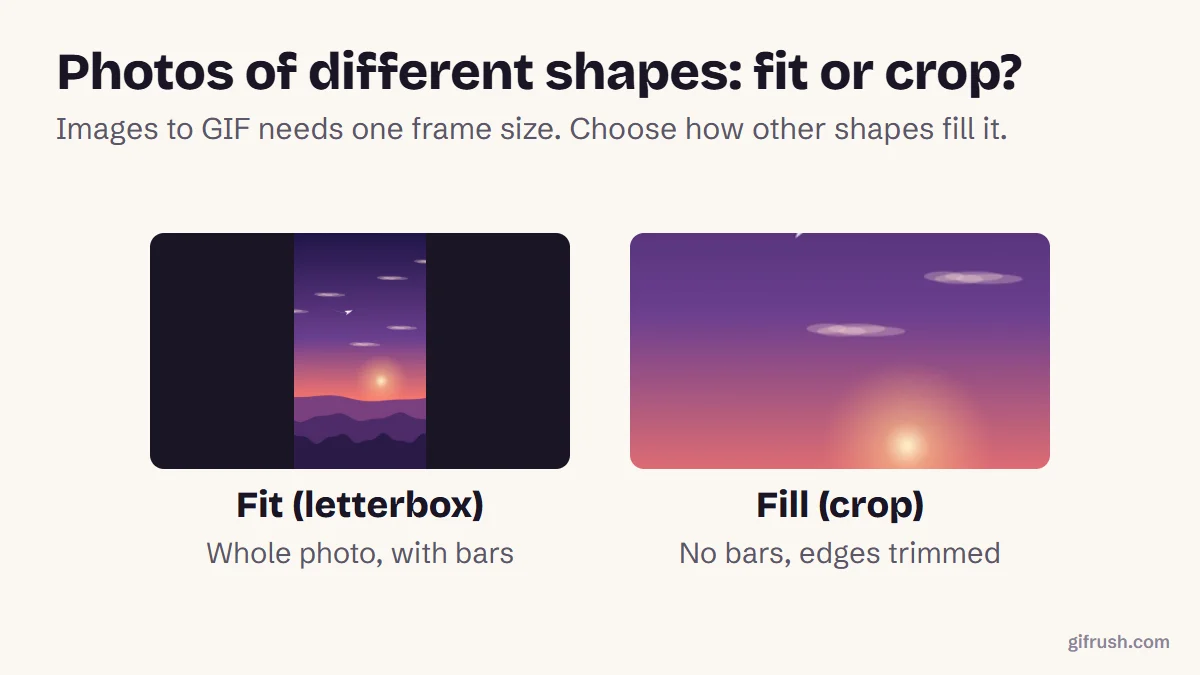
- Fit (letterbox) shows the whole of each photo, with bars in the background colour you choose.
- Fill (crop) fills the frame and trims what doesn’t fit, so keep subjects near the centre.
- For the most control, crop the photos to the same shape first.
How to keep a photo GIF looking good
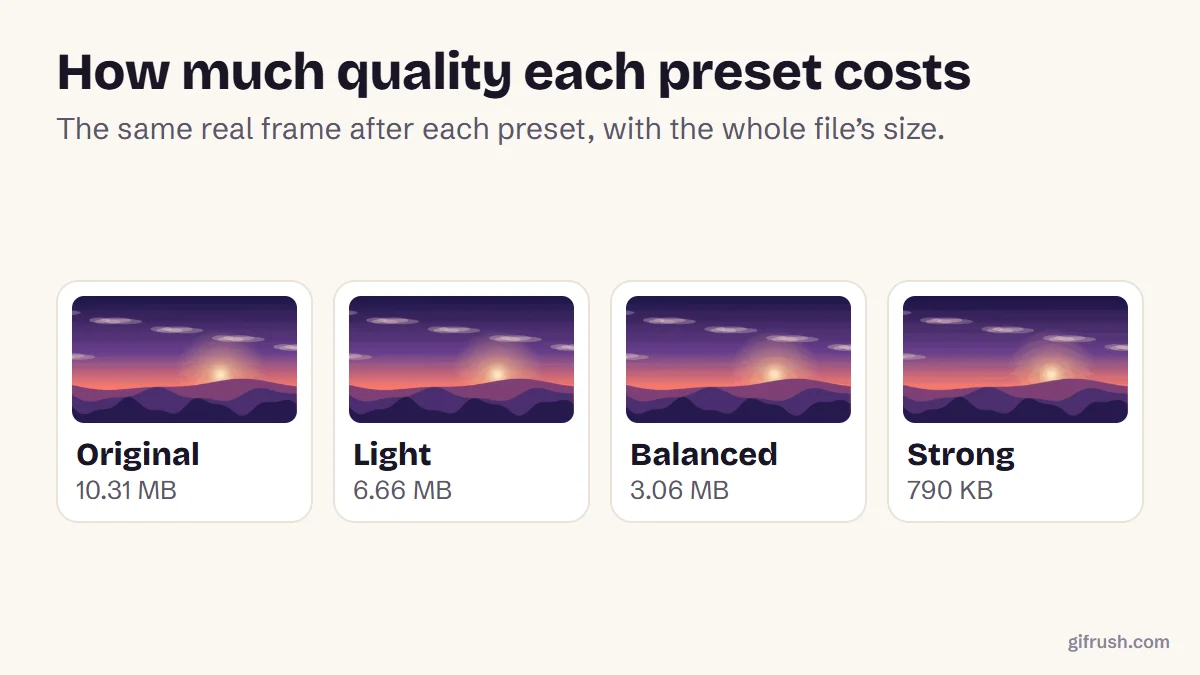
Photos are the hardest content for GIF, because each frame can use only 256 colours. Images to GIF builds a separate palette for each photo, which helps a lot, but a few habits help more:
- Choose a modest width. 480 px is plenty for chat and social posts, and much lighter than full size.
- Use fewer photos. Every photo adds a full frame of data. Twenty photos at 480 px can easily pass 2 MB.
- Avoid huge gradients such as clear skies where possible, because they’re where banding shows first.
- Compress if needed. Our compression guide explains the trade-offs.
Making a photo GIF on a phone
Images to GIF works in a phone browser too: tap the drop area to choose photos from your library. On iPhone, Apple’s Shortcuts app also has a Make GIF action, which can turn recent photos into a GIF with no settings to fiddle with.
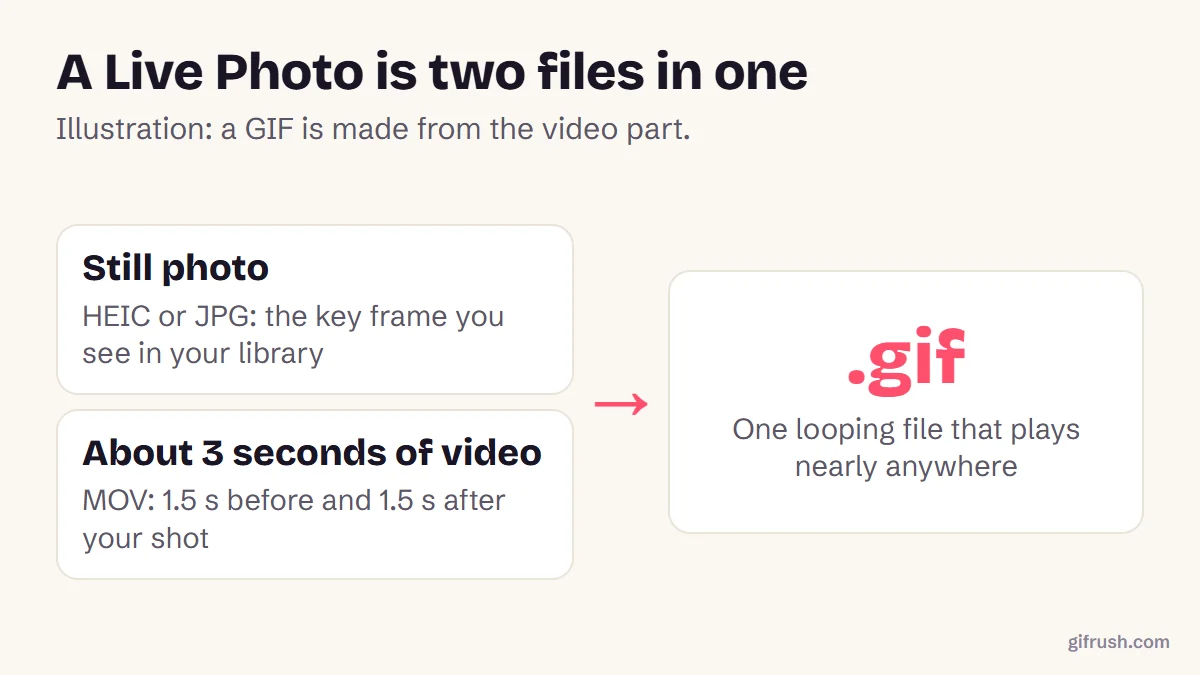
If you meant a Live Photo rather than several pictures, there’s already movement inside it. See how to turn a Live Photo into a GIF, or go the other way with how to turn a GIF into a Live Photo. Only have one picture? Read how to turn a still image into a GIF.
Ready? Drop your photos in. They stay on your device, and there’s no watermark.Open Images to GIF
New to this topic? Start with our main guide: How to make a GIF from scratch
Frequently asked questions
How do I make a GIF from photos?
Add two or more photos to a GIF maker such as GifRush Images to GIF, put them in order, set how long each one shows, choose a size, then create and download the GIF.
How many photos can be in a GIF?
The GIF format has no limit, and GifRush Images to GIF accepts up to 200. Fewer photos keep the file smaller, so most photo GIFs use between 3 and 20.
How long should each photo show in a GIF?
About 0.5 to 1 second for a slideshow, or 0.1 to 0.2 seconds when you want burst shots to look like motion.
Can I make a GIF from iPhone photos?
Yes. Images to GIF accepts iPhone HEIC photos in any browser, and Apple’s Shortcuts app has a Make GIF action as well.
Why does my photo GIF look grainy?
GIF can show only 256 colours per frame, so photos with smooth gradients get approximated. Use a moderate width and fewer photos, and avoid large areas of smooth sky where possible.
Sources
- Graphics Interchange Format, Version 89a (W3C archive of the CompuServe specification)
- Intro to Shortcuts on iPhone and iPad (Apple Support)
Free tools for this
Images to GIF
Combine PNG, JPG, WebP or HEIC images into an animated GIF slideshow with custom timing.
JPG to GIF
Convert JPG photos to GIF — a single image to a still GIF, or several into an animation.
HEIC to GIF
Convert iPhone HEIC/HEIF photos into a GIF — one photo or an animated sequence.
GIF Speed Changer
Speed up or slow down a GIF from 0.25× to 4×, or give every frame the same delay.
Find more free tools for the same job in All GIF Tools, the GIF Converter and the GIF Editor.